How to Convert PDF to Word in a Simple Way for Free (No Upload, No Watermark)
You open a contract, a CV or a lecture handout, and the text refuses to change. This guide shows the fastest fix and compares the popular free tools honestly.
Quick answer: To convert pdf to word for free, open the EZ Compress PDF to Word tool, drop your file, press convert and download the DOCX. Text PDFs finish in seconds, scans are read with OCR, and the file never leaves your device.
Why a PDF Fights Back When You Try to Edit It
A PDF does not store sentences. It stores single words with coordinates, like letters pinned to a board. A converter has to guess which lines form a paragraph and which large text is a heading. That guesswork explains why one tool can convert from pdf to word cleanly while another returns a mess, and why a plain text report converts better than a brochure.
Convert PDF to Word Online in 3 Steps
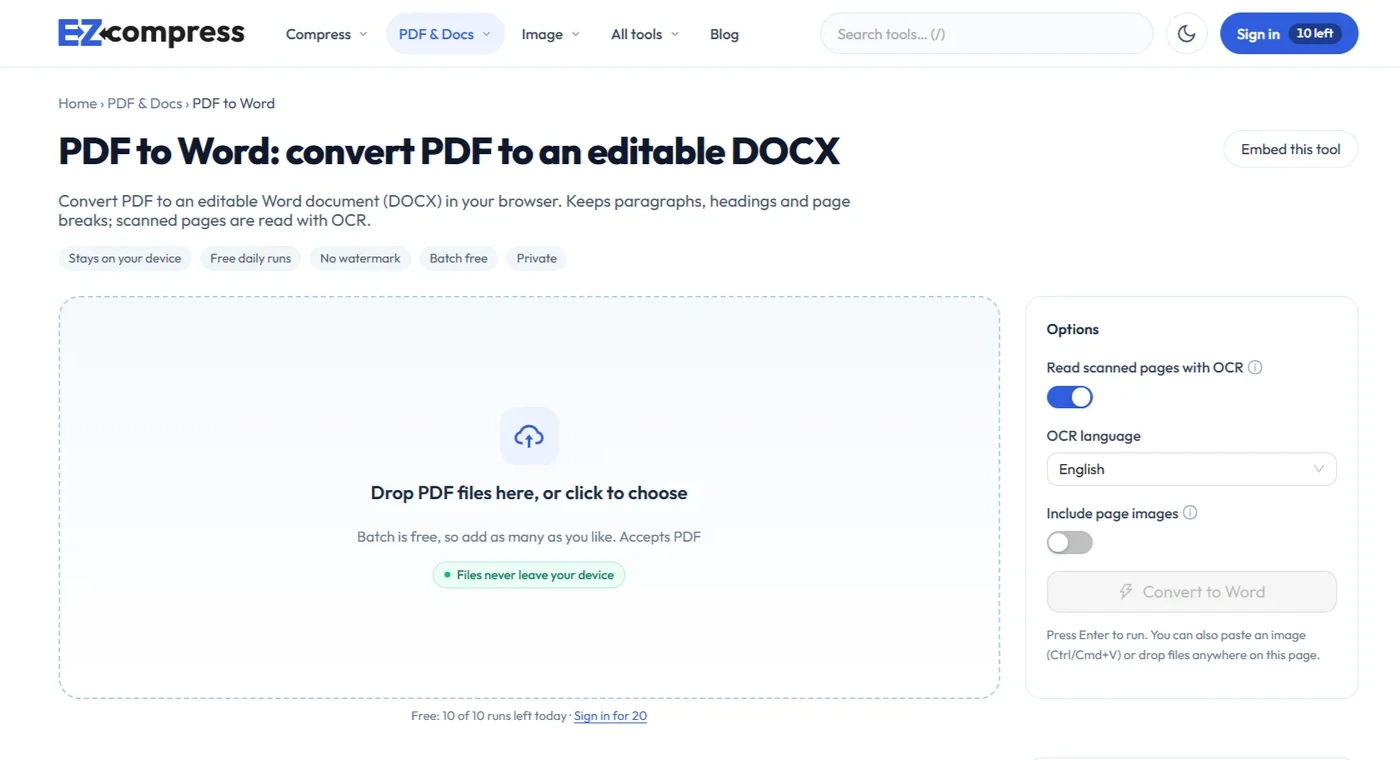
- Open the PDF to Word converter and drop your PDF. You can add several at once.
- Leave OCR on if the file is a scan and pick its language from ten options, including Urdu, Hindi and Arabic. Switch on “Include page images” if the file has tables or charts.
- Download the DOCX. It opens in Word, Google Docs, LibreOffice and Pages.
You can convert pdf to word online from a phone the same way. There is no watermark, and a batch of 30 files counts as one run. At the time of writing you get 10 free runs a day without an account and 20 with one.
How to Convert PDF to Word Without Any Website
If you already own Word, go to File, then Open, and choose the PDF. Word offers to convert it, using a feature Microsoft calls PDF Reflow. Reflow favours easy editing over picture-perfect alignment, so some content repositions. It works best on mostly textual documents.
The catch is scans. Word has no built-in OCR, so it cannot edit scanned PDFs. Use Word for simple text files and an online tool for everything else.
EZ Compress vs Smallpdf, iLovePDF, Adobe and Word
If your search was “convert pdf to word free”, three things separate the tools: daily limits, scan support and where your file goes.
| ToolFree limitScanned PDFsWhere your file goes | |||
| EZ Compress | 10 runs a day, 20 with a free account, batch counts as one | OCR included, 10 languages | Processed in your browser |
| Smallpdf | Two PDFs per day | OCR is a Pro feature | Uploaded to its servers |
| iLovePDF | Reported as 1 task a day, 25 MB per file | Paid plan (reported) | Uploaded to its servers |
| Adobe Acrobat online | Reported as 1 conversion a day, Adobe account required | Strong on complex layouts (reported) | Uploaded to its servers |
| Microsoft Word | Free if you own Word | No OCR | Stays on your PC At a glance +3 |
Free limits change often, so check each site before you rely on a number. The privacy column is the one people overlook. A contract or ID scan sent to a stranger’s server is a real risk, and you can verify that nothing is sent by watching your browser’s network tab.
Searches like “pdf to word convert pdf to word online for free” all lead to the same question: what is the catch? With most tools the catch is a daily cap or an upload.
Scanned PDF to Editable Word: What OCR Actually Does
A scan is only a photo of a page, so there is no text to read. To convert pdf to editable word from a scan, the tool must recognise each character. Ours runs Tesseract, an open-source engine, on your own device. The language model downloads once and is then cached.
Accuracy depends on the scan. Clean pages at 300 DPI work well. Faint or tilted pages produce typos, so proofread names, dates and numbers. If you only have a photo, try JPG to Word instead.
What Will Not Survive the Conversion
Here is the honest part. Paragraphs, headings and page breaks carry over. Tables, multi-column pages and floating text boxes are flattened into flowing paragraphs, because a PDF never stored them as real structure. Switching on page images places a picture of each page above its text, so you can rebuild a table by looking at the original.
3 Tips for Cleaner Results
Tip 1: Look for the original first. Before you convert pdf to word, check whether the source Word file still exists in your email or cloud drive. It will always beat any conversion.
Tip 2: Unlock protected files first. A password-protected PDF will not convert. Remove the protection with Unlock PDF, using the password you know.
Tip 3: Shrink the result. Page images make a DOCX heavier. Run it through Compress Word before you email it.
Need the Reverse? Convert Word to PDF
Once your edits are done, you will probably want to go back. To convert word to pdf in Word itself, choose File, then Save As, then PDF. If you do not have Word, you can convert word to pdf online with our Word to PDF tool. It is a free way to convert word to pdf from any browser, and it works the same way. People who ask how to convert word to pdf are usually trying to lock the layout before sharing. A word convert to pdf run does exactly that.
Final Thoughts
Now you know how to convert pdf to word without paying, installing software or handing your documents to a server. Start with a text PDF to see how clean the result is, then try a scan with OCR. Ready? Convert pdf to word now.
Every compressor runs in your browser, so your file stays on your device.
Open the compressors