How to Turn a PDF Into a Word Doc: 5 Free Methods That Keep Your Text Editable
You open a PDF to fix one typo. Ten minutes later you are still trying to select a single line, the cursor jumps across the page, and the file refuses to cooperate. Sound familiar?
Learning how to turn a PDF into a Word doc solves this for good. Once the file is a DOCX, you can retype a sentence, rewrite a paragraph, change a date or lift a whole section into another document, all with the tools you already know.
This guide walks through every practical way to do it: on a laptop, on an iPhone, on an Android phone, on a Mac, and even when your PDF is just a photo of a paper page. You will also find honest answers about free tools, AI tools, file formats and the limits no converter likes to admit.
If you only want the short route, use the free EZ Compress PDF to Word converter and come back here when you need details.
The Short Answer (Read This First)
The fastest free way to turn a PDF into a Word doc is a browser based converter. Open the tool, drop in your PDF, keep OCR switched on if the pages are scans, then download the DOCX file. It works on desktop and mobile, and the result opens in Word, Google Docs, LibreOffice and Apple Pages.
Other routes exist, including Microsoft Word itself and Google Docs, and each one has a trade off. The table below shows them side by side.
Quick Comparison: Which Method Fits You?
| MethodCostBest forWeak spot | |||
| EZ Compress PDF to Word (browser) | Free daily runs, no watermark | Fast conversion on any device, scanned pages, batches | Complex tables and columns need manual cleanup |
| Microsoft Word (File > Open) | Needs a Word license | Simple text documents when Word is already installed | Layout often shifts, needs a paid app |
| Google Docs (Drive) | Free with a Google account | Plain text PDFs and quick OCR | Formatting is frequently flattened |
| Adobe Acrobat export | Paid plan for full export | Heavily formatted business documents | Subscription cost |
| General AI chatbot | Free tiers exist | Rewriting or summarizing the text | Not a layout faithful converter |
Why a PDF Is So Hard to Edit in the First Place
Here is the part most guides skip. A PDF does not store your document as paragraphs. It stores instructions that say, in effect, "draw this letter at this exact spot on the page." Nothing in the file says that three lines belong together as one paragraph.
That is why PDFs look identical on every device, and it is also why editing them feels like moving furniture that has been glued to the floor. A converter has to guess where paragraphs begin, which lines are headings and what order the text should read in. Good tools guess well on simple pages. Everything else needs a quick human check, which is why the cleanup section near the end of this article matters.
How to Turn a PDF Into a Word Doc With EZ Compress (Step by Step)
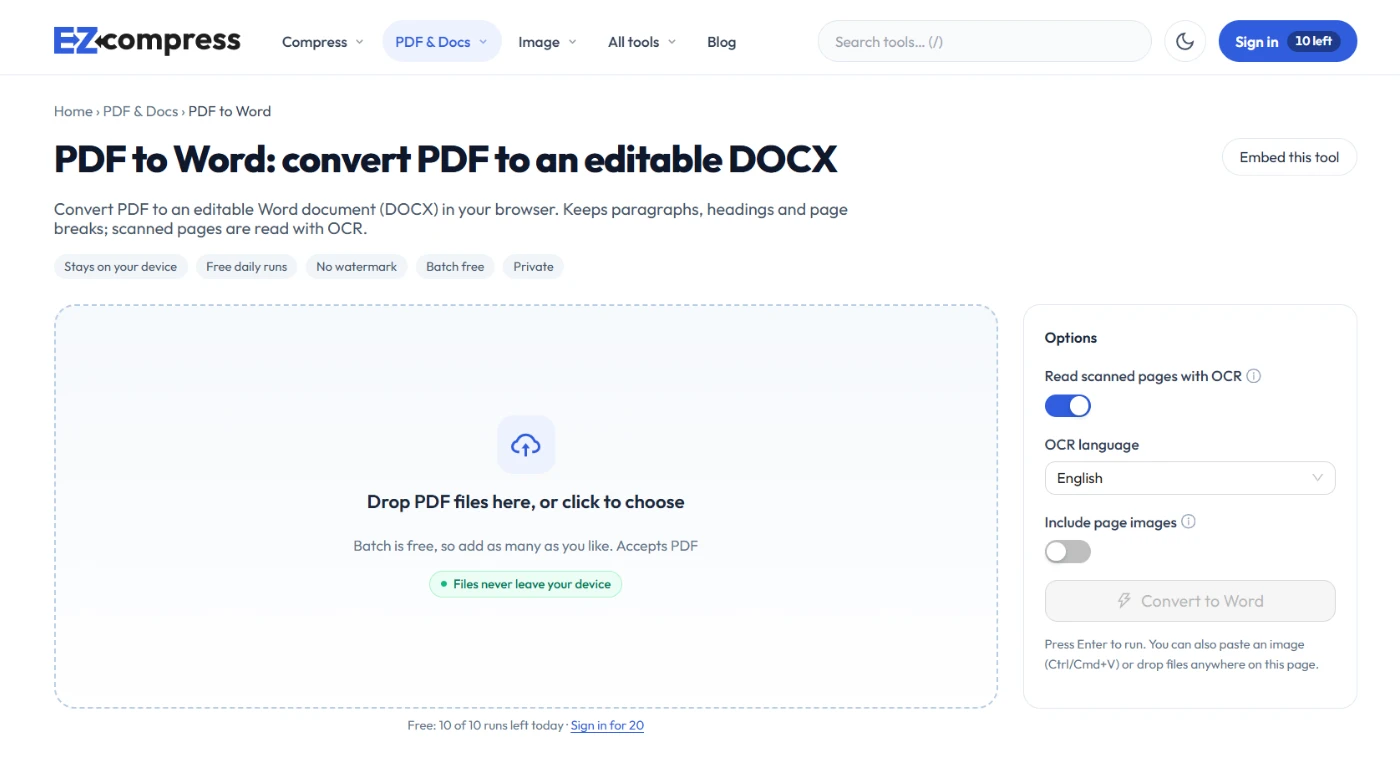
This is the route we recommend for most people because it needs no install and no account. Here is how to make PDF to Word happen in four quick steps:
- Open the converter. Go to https://ezcompress.org/pdf-to-word in any modern browser (Chrome, Edge, Safari or Firefox).
- Add your file. Drag the PDF onto the page, or tap the drop area to pick it from your device. You can add several PDFs at once, and each one becomes its own Word file.
- Choose your settings. Leave OCR on if the PDF came from a scanner or a phone camera. Switch on "Include page images" only if you want a picture of each original page placed above its text, which is handy for checking the conversion against the source.
- Download the DOCX. Open it in Word, Google Docs, LibreOffice or Pages and start editing.
What the tool does behind the scenes: it rebuilds paragraphs and headings from the text layer of your PDF and adds a page break at the end of each original page. For scanned pages it reads the image with Tesseract, an open source OCR engine.
One detail worth knowing: conversion runs inside your browser, so the PDF and the finished Word file stay on your device. The only thing that downloads is the OCR language model, and only once, the first time a scanned page needs it. If your documents contain contracts, medical records or client data, that is a real advantage over tools that upload your file to a server.
How Can I Convert a PDF to Word for Free?
You have four honest options, and "free" means something slightly different in each.
Option 1: A free online converter. This is the quickest option. Pick one with no watermark, no forced sign up and a clear privacy statement. EZ Compress gives you free daily runs without a watermark, including batch conversion.
Option 2: Google Docs. Upload the PDF to Google Drive, right click it, choose Open with, then Google Docs. Once it opens, go to File, Download, Microsoft Word (.docx). It costs nothing, but expect bullets, columns and tables to arrive flattened. Google also runs OCR on image based PDFs, though results vary with scan quality (TechRepublic has a clear walkthrough of the Drive method).
Option 3: Microsoft Word. If Word is already on your computer, go to File, Open and pick the PDF. Word warns you that it will convert the file and that the result may not look identical. Microsoft explains the process on its own page about editing a PDF in Word. The catch is that you need the app, and complex layouts can shift.
Option 4: A trial of paid software. Adobe Acrobat is the long standing benchmark for export quality. Its full export is part of a paid plan, so check Adobe's help page for current limits before you rely on a trial.
For one off jobs, option 1 wins on speed. For a Google heavy workflow, option 2 is fine. Option 3 makes sense when you already pay for Word.
How Can I Turn a PDF File Into a Word DOC?
Short answer: convert it to DOCX first. If you are wondering how to convert PDF file to Word file in the exact format a form or portal asks for, the notes below cover both options.
People often write "DOC" when they mean "a Word file." There are two formats, and the difference can save you a headache.
DOCX is the modern Word format, used since Word 2007. It is smaller, more reliable and opens almost everywhere. EZ Compress produces DOCX.
DOC is the older binary format. Some legacy systems, government portals or old school software still ask for it.
If a system insists on .doc, convert to DOCX first, then open it in Word and choose File, Save As, then pick "Word 97-2003 Document (*.doc)". It takes ten seconds and avoids hunting for a second converter.
How Do I Convert a PDF to Word Without Paying?
Plenty of tools say "free" and then charge at the last step. Before you upload anything, run through this short checklist:
- Watermark: does the output carry a logo across the pages?
- Page cap: does the tool stop after two or three pages?
- Daily limit: is the number of free runs stated anywhere?
- Sign up wall: does it demand an email before you can download?
- Upload: does the file travel to someone else's server? If so, how long do they keep it?
- OCR: is scanned text recognition included, or locked behind a plan?
A converter that passes all six is genuinely free for everyday use. EZ Compress states that its output has no watermark and that batch processing is free. The daily run limit is not published on the page, so if you convert very large volumes, test with a handful of files first and plan accordingly.
Which AI Is Best for Converting PDF to Word?
This question comes up constantly, and the honest answer is that no single AI is "best," because AI tools do a different job from converters.
A converter rebuilds the file. It reads the PDF structure and writes out a DOCX that tries to keep headings, page order and images in place.
A general AI chatbot reads the content. You can upload a PDF and ask it to rewrite the text, pull out the key points or format it as clean paragraphs, which you then paste into Word. That works well for text, but it is not designed to preserve fonts, columns or page layout, and long documents risk skipped passages or altered numbers.
Here is a practical way to choose:
- Need the same document, just editable? Use a dedicated converter.
- Need to reword, shorten or translate the content? Use an AI assistant after converting, then proofread.
- Need Adobe grade fidelity on a designed brochure? Look at Adobe Acrobat and its AI features.
- Handling sensitive files? Prefer a tool that processes in your browser rather than uploading to an AI service.
Whatever you use, check every figure, name and date in the output. AI can read a "6" as an "8" or quietly drop a line, and nobody else will catch it for you.
How to Convert PDF to Word in iPhone
On an iPhone you do not need an app. Safari does the job.
- Open Safari and go to https://ezcompress.org/pdf-to-word.
- Tap the upload area and choose your PDF from the Files app, iCloud Drive or Photos.
- Leave OCR on if the PDF is a scan.
- Wait for the conversion, then tap Download.
- Tap the download icon in Safari's address bar, open the file from your Downloads folder and share it to the Word app, Pages or Google Docs.
Tip: if the PDF is in an email or messaging app, tap Share, then Save to Files first. That puts it where Safari's file picker can find it.
How to Convert PDF to Word in Mobile (Android)
The steps are almost identical on Android:
- Open Chrome and visit the converter.
- Tap the upload area and pick the PDF from your phone storage or Google Drive.
- Keep OCR on for scans, then download the DOCX.
- Open Files or the Downloads list, tap the file and choose Word or Google Docs.
If you are wondering how to convert PDF to document in mobile without installing a heavy app, this is the lightest route. There is nothing to update, nothing to sign up for and no storage used by an app. A mobile converter app can still make sense if you do this all day, but for occasional jobs the browser is enough.
Can You Turn a Scanned PDF Into Editable Word Text?
Yes, with OCR (optical character recognition). A scanned PDF is really a picture of text, so there are no letters to copy until OCR reads the image and turns it back into characters.
EZ Compress handles this with Tesseract and supports English, Spanish, French, German, Portuguese, Italian, Arabic, Urdu, Hindi and Simplified Chinese. That is useful for bilingual teams and for anyone working with Urdu or Arabic paperwork, which many tools handle poorly.
Five habits that improve OCR results:
- Scan at 300 DPI or higher, which is commonly recommended for OCR.
- Keep the page flat. A curved page near the spine of a book causes errors.
- Use even light and avoid shadows from your phone.
- Crop out dark borders before converting.
- Rotate pages upright first. Skewed or faint scans produce more mistakes.
Expect to proofread. Even good OCR confuses characters like O and 0 or l and 1, so scan the output for numbers, names and email addresses.
How to Turn a PDF Into a Word Doc on Mac
Macs ship with Preview, which is excellent for reading and signing PDFs but cannot save as Word. You have three good options:
- Use a browser converter. Open Safari or Chrome, go to https://ezcompress.org/pdf-to-word and follow the same steps as above. It works exactly as on Windows.
- Use Word for Mac. Choose File, then Open, select the PDF and let Word convert it.
- Use Google Docs. Upload to Drive, open with Google Docs, then download as .docx.
If you plan to finish the file in Pages, convert to DOCX first and open that in Pages. Apple also documents how to export from Pages to Word or PDF.
Can You Convert Many PDFs at Once?
Yes. Drop several PDFs into the EZ Compress converter together and each one becomes a separate DOCX. This saves real time for invoices, lecture notes, monthly reports or a folder of scanned forms.
Some competing apps keep batch conversion behind a paid subscription. If you handle a large number of files each week, check the daily limits of any tool before building a routine around it.
How to Edit PDF to Word and Clean Up the Result
Converting is half the job. The other half is a five minute check so the document looks professional. After you edit PDF to Word, run through this list:
- Turn on formatting marks (the paragraph symbol in Word) to spot stray line breaks inside paragraphs.
- Reset fonts. Select all and apply a single font and size, then restore headings.
- Rebuild tables. Complex tables and multi column layouts usually come across as flowing paragraphs. Rebuild them with Insert, Table.
- Check headers and footers. Page numbers from the PDF may land in the body text.
- Fix hyphenation. Words split at line ends in the PDF can appear as "informa tion".
- Compare with the source. Switching on "Include page images" in the converter gives you the original page right above its text, which makes comparison fast.
This is also how you handle any pdf to word file edit job without losing your mind: convert, clean, then save under a new name so the original stays untouched.
PDF to Office: When Word Is Not the Right Target
"PDF to Office" covers more than Word. The same logic applies to other formats:
- Mostly paragraphs and headings: Word is the right choice.
- Mostly numbers in rows and columns: Excel will hold the structure better.
- Slides saved as PDF: PowerPoint is the natural home.
If your PDF is a table heavy financial statement, converting it to Word and rebuilding the tables by hand will cost more time than choosing the right format at the start.
Searching for "PDF to Word I Love You"?
A lot of people type "pdf to word i love you" when they are actually looking for iLovePDF, a well known online converter. It is a legitimate tool, and its mobile app guide is a decent reference for app based workflows.
So why consider something else? Because the tools differ in a few practical ways. Server based converters upload your file, and iLovePDF states that uploaded documents are deleted automatically after two hours. EZ Compress converts inside your browser, so the file never has to leave your device. Batch conversion on iLovePDF's mobile app needs a Premium subscription, while EZ Compress offers batch conversion in its free daily runs.
Neither approach is wrong. The right pick depends on how sensitive your files are and how often you convert.
How to Turn a Word Doc Into a PDF
Sometimes you need to go the other way, for example when you finish editing and must send a locked, universal copy. Here is how to turn a Word doc into a PDF:
- In Word on Windows or Mac: File, Save As (or Export), then choose PDF.
- In the Word mobile app: open the menu, choose Export or Share, then pick PDF.
- In Pages: File, Export To, PDF.
- Any app: use Print, then Save as PDF.
Microsoft documents the exact options, including how to keep headings as bookmarks, on its page about saving or converting to PDF.
Is It Safe to Convert PDFs Online?
It depends on how the tool works, and so judge the process, not the marketing.
Server based tools upload your file, process it remotely and delete it later. That can be perfectly fine for a public flyer. For tax papers, contracts or ID scans, ask these questions first: where does the file go, how long is it kept, and is the connection encrypted?
Browser based tools like EZ Compress process the file on your device. The PDF and the Word file stay with you, and nothing needs to be deleted later because nothing was stored elsewhere. For sensitive documents that design is simply easier to trust.
3 Pro Tips Before You Convert
Tip 1: Check whether your PDF has real text. Try to highlight a sentence in the PDF. If it highlights, the file has a text layer and will convert cleanly. If you can only select the whole page like a picture, it is a scan and you need OCR switched on.
Tip 2: Fix the source, not the output. If a scan is crooked or dark, rotate and crop it before conversion. Ten seconds of prep saves ten minutes of correction.
Tip 3: Keep two copies. Save the original PDF and the edited DOCX under clear names (for example "contract-original.pdf" and "contract-edited.docx"). When something looks off later, you can compare against the source in seconds.
Final Thoughts: Pick the Path That Matches Your File
Knowing how to turn a PDF into a Word doc is really about matching the method to the file. A clean text PDF converts in seconds almost anywhere. A scan needs OCR. A table heavy report needs a little rebuilding. And a confidential file deserves a tool that keeps it on your device.
Ready to try it? Open the EZ Compress PDF to Word converter, drop in your file and have an editable DOCX in a few clicks, free and without a watermark.
Every compressor runs in your browser, so your file stays on your device.
Open the compressors