

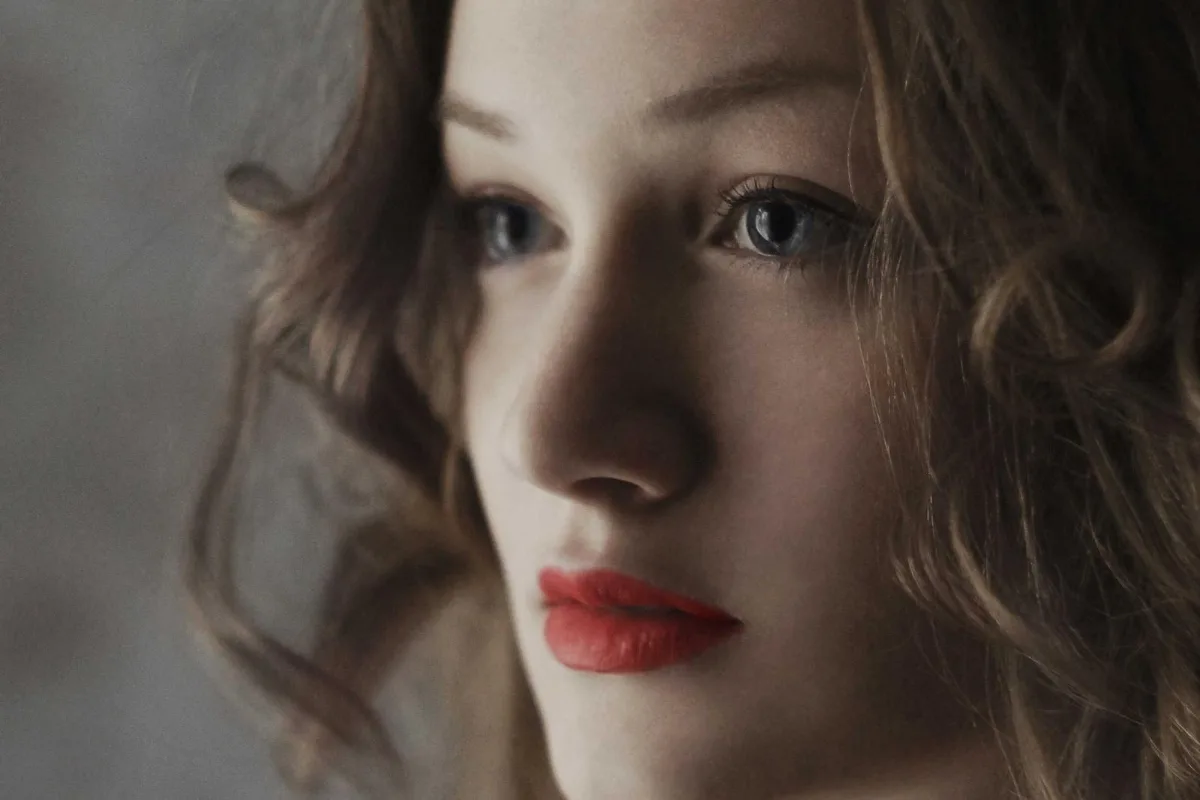
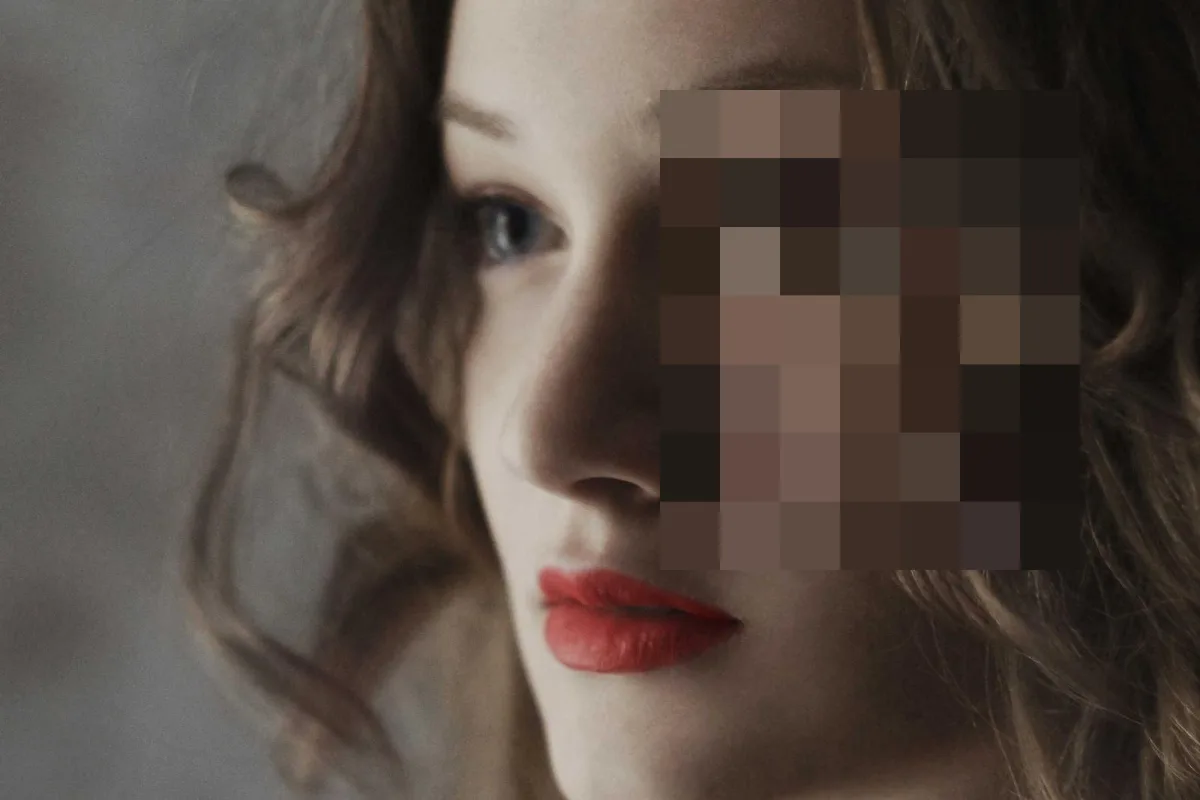
Draw one or more boxes over anything you want hidden (faces, plates, addresses, card numbers) and choose blur, pixelate or solid fill. Because this runs on your device, the unredacted photo never leaves it.
What is Blur Face?
Our blur face tool lets you hide faces, licence plates, addresses or card numbers in a photo by drawing boxes over them. Each box can be pixelated, blurred or filled with solid black, while the rest of the picture stays exactly as it was.
It is built for the moment before you post or send a photo: a street scene with strangers in it, a car with a readable plate, a screenshot with an email address, a document with a signature. Because the redaction happens on your own device, the unedited version never travels anywhere, which matters most for exactly the photos you are trying to protect.
How to blur face
- Drop a photo.
- Drag boxes over the areas to hide; choose blur, pixelate or black-out.
- Download.
How Blur Face works
Redaction is about removing information, not just making it look softer. A blur averages neighbouring pixels, which hides detail but leaves a smooth gradient behind. With mild settings, that gradient can sometimes be partly reconstructed. Pixelation replaces each block of pixels with a single colour, throwing away everything inside the block. A solid fill removes the area completely and is the only method that leaves nothing at all to recover.
The strength slider controls how aggressive the blur or pixel blocks are. For pixelation the block size scales with the width of your box, so a small box over a distant face and a large box over a close-up both end up unrecognisable.
Everything runs on a canvas in your browser. The original photo is drawn, the patch inside each box is processed, and the result is painted back over just that area. The finished image is saved as a high-quality JPG at the original resolution.
Key features of Blur Face
Any number of boxes, no charge
Draw as many redaction boxes as the photo needs and download the result for free. There is no watermark added to your image, and free runs reset every day.
Covers exactly what you draw
Only the pixels inside your boxes change; everything outside stays untouched at full resolution. Pixelated blocks scale with the box size, and the solid black option removes the content completely, which is the safest choice for numbers and text.
Live preview as you drag
Each box is applied the moment you release it, and changing between pixelate, blur and black or moving the strength slider updates the preview instantly. Nothing has to be sent anywhere first, so redacting a photo takes seconds.
Draw boxes by touch
Drag with a mouse on a computer or with your finger on a phone or tablet. It works in current Chrome, Edge, Safari and Firefox on Windows, macOS, Linux, iPhone, iPad and Android, with no app to install.
Clear controls and undo
The method switch and buttons are labelled and reachable with the keyboard, the strength slider works with arrow keys, and Undo and Clear make mistakes painless. Dark mode is available and there is no time limit.
Unredacted photo stays home
The original image is opened and edited only in your browser. It stays on your device the whole time, so the faces or plates you are hiding are never exposed to a server. You can check the network tab to confirm it.
What makes EZ Compress's Blur Face different
Three ways to hide
Many tools offer only a blur. Here you choose pixelate, blur or a solid black box, and can switch between them at any time, so you can match the method to how sensitive each area is.
Not just faces
You draw the boxes yourself, so the same tool hides licence plates, house numbers, screen contents, name badges and handwritten notes, all things that an automatic face detector would simply miss.
Private by design
Redacting a photo on someone else's server means trusting them with the very thing you want hidden. This tool never sends the image to a server at all, so there is nothing to trust and nothing to delete afterwards.
Why use Blur Face?
Posting photos of public places, events or classrooms often means catching people who never agreed to be online. Using a blur face tool before you post is a simple courtesy, and in some workplaces and schools it is a policy. The same goes for car number plates in dashcam stills, sale listings and neighbourhood group posts.
Screenshots leak more than people expect: email addresses, order numbers, chat names and account balances. Drawing a black box or a pixelated block over them takes a few seconds and stops a screenshot from turning into a privacy problem later.
Who can use Blur Face?
Teachers and schools
Share class trip or event photos with parents while pixelating children whose families have not given consent for their images to appear online.
Car sellers
Hide the licence plate and any visible addresses in listing photos before posting them on a marketplace or classifieds site.
Journalists and bloggers
Protect bystanders, sources or minors in street and event photos while keeping the rest of the scene intact for readers.
Support and IT staff
Black out customer names, emails and account numbers in screenshots before adding them to support tickets, internal documentation or training slides.
Dashcam owners
Pixelate other drivers' plates and pedestrians' faces in stills before sharing an incident photo on social media or a forum.