

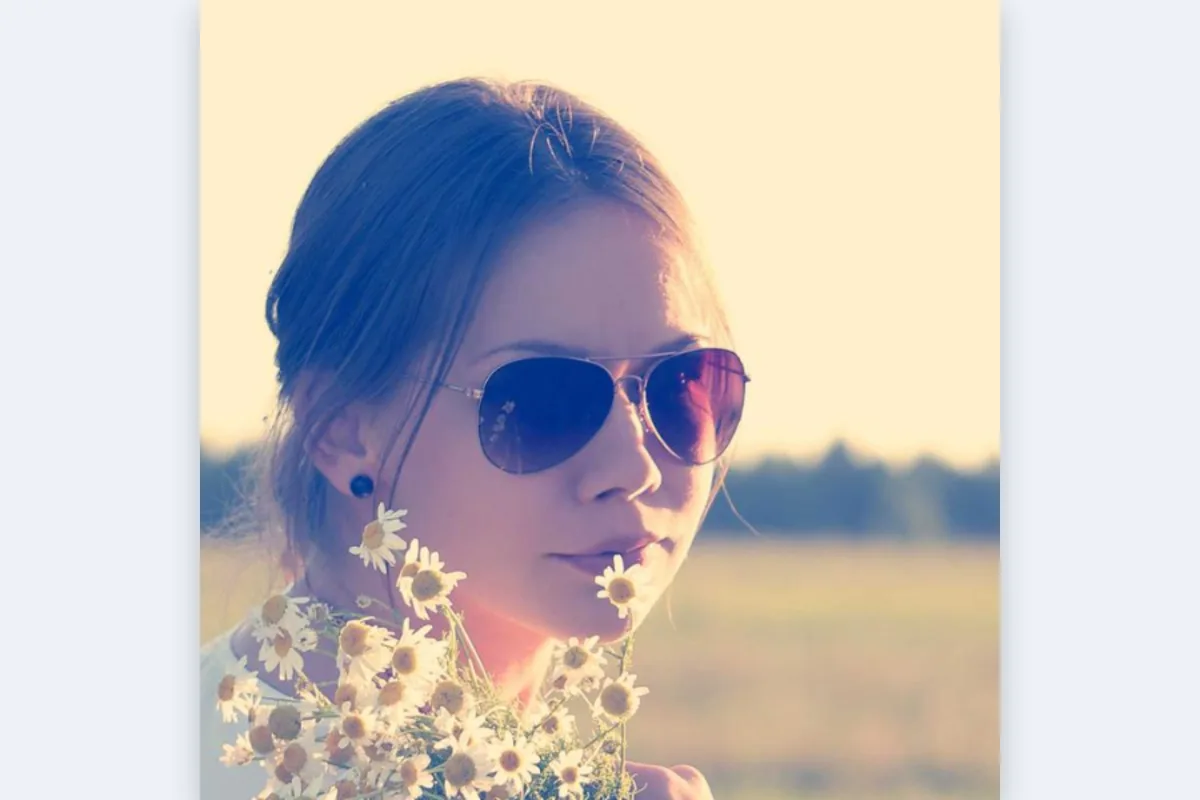
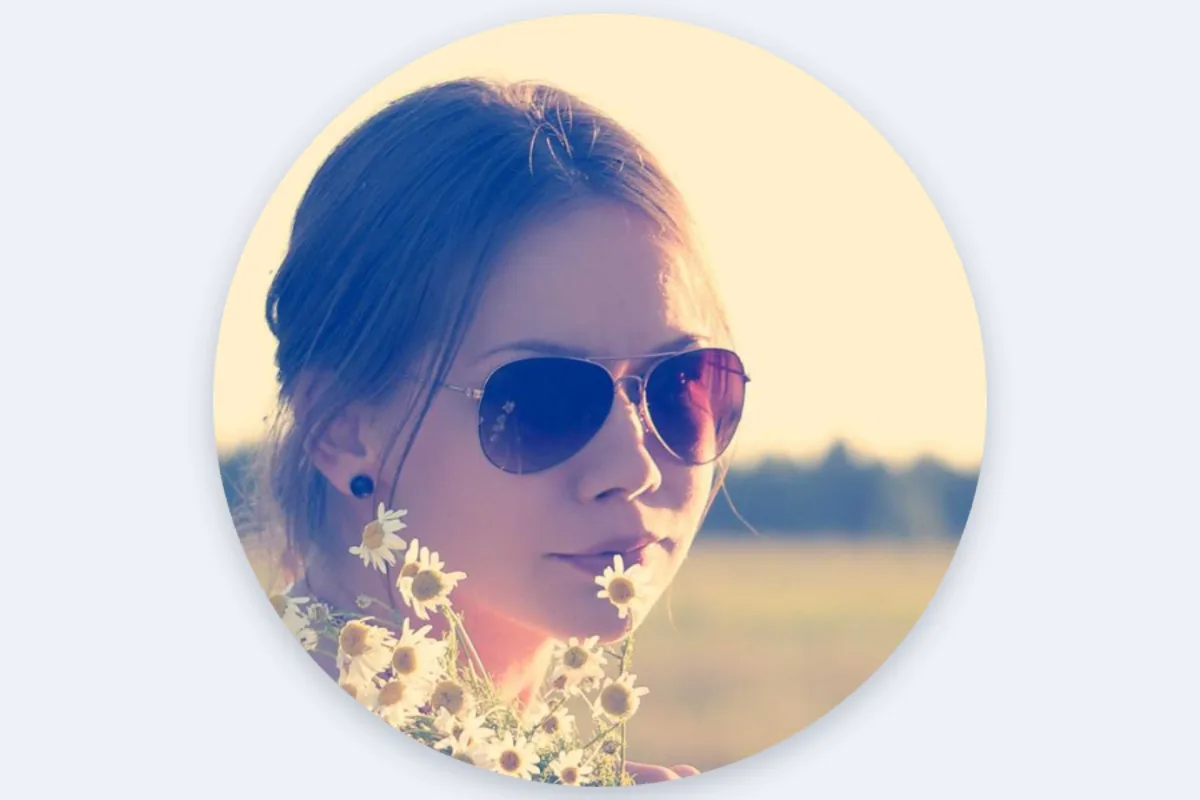
Make a round avatar for Discord, Slack, email signatures or presentations. Position the circle, add an optional coloured border, and download a PNG with transparent corners.
What is Circle Crop?
A circle crop cuts a photo into a perfect round shape and makes everything outside the circle transparent. You position the circle over a face, logo or object, optionally add a coloured border, and download a PNG that drops neatly onto any background, whether a slide, a website or an email signature.
Round images are everywhere: team pages, speaker lists, chat avatars and comment threads. Making one by hand in a photo editor means fiddling with masks and layers. This tool does it in a few seconds and keeps the corners properly see-through.
How to circle crop
- Drop a photo.
- Move and resize the circle.
- Download the PNG.
How Circle Crop works
A digital image is always a rectangle. To make it look round, the pixels outside the circle are made fully transparent using the alpha channel, a fourth value stored for every pixel alongside red, green and blue. Viewers then show whatever sits behind the image in those corners.
Only some formats can store alpha. PNG can, and JPG cannot, which is why circle crops are always saved as PNG here. Save the same image as JPG and the corners turn into solid white or black squares.
The crop box is locked to a 1:1 ratio, so the circle is never squashed into an oval. The final PNG is as wide as the area you selected in the original photo, so a larger selection gives a sharper result. The optional border is drawn as a solid ring around the edge, up to 40 pixels thick. All processing runs in your browser.
Key features of Circle Crop
Free round photos
Make circular images for free. There is no watermark in the middle of your avatar and no paid tier. Free account holders get extra runs each day.
A true circle, never an oval
The selection is locked to a perfect square, so the output is an exact circle with clean, anti-aliased edges. The PNG keeps the full resolution of the area you selected.
Round in a second
The circle mask and border are applied on your device the moment you click Download. Nothing has to travel to a server, so even a large photo is ready almost immediately, on a phone or a laptop.
Crop on any device
Move and resize the circle with a mouse on Windows, macOS or Linux, or with a finger on iPhone, iPad and Android. It works in Chrome, Edge, Safari and Firefox with no app.
Labelled, keyboard-ready controls
The border slider, colour picker and buttons are labelled and reachable with Tab, and the slider moves with the arrow keys. Dark mode, browser zoom and screen reader announcements are all supported.
Photos kept on your device
Team headshots and personal photos are cropped inside your browser and stay on your device. Only the cropping library is fetched when the page loads, as the network tab will show. Nothing is stored anywhere.
What makes EZ Compress's Circle Crop different
Real transparency, not a white box
Many quick circle tools paste the round photo onto white and save a JPG. This one always saves PNG with transparent corners, so it looks right on dark slides and coloured web pages.
Optional coloured border
Add a ring from 1 to 40 pixels thick in any colour, matching your brand or team colours, without opening a separate design tool. Leave the slider at 0 for a clean edge.
Rotate and flip built in
Turn a sideways photo with the Rotate button or mirror it with Flip before cropping, then Reset if you change your mind, all in the same screen, so there is no need to fix the photo in another app first.
Why use Circle Crop?
Use it when a round image needs to look clean on any background: a speaker photo on a conference slide, a headshot on an About page, or a logo in an email signature. Because the corners are transparent, the same file works on white, dark or coloured layouts without a visible box.
It also helps when you want to crop a picture into a circle for a sticker, badge or printed name tag. Add a white or brand-coloured border to make the shape stand out, and you have a finished round image in seconds.
Who can use Circle Crop?
HR and people teams
Turn staff headshots into matching round photos for an organisation chart, intranet directory or onboarding slide deck, all with the same border colour.
Event organisers
Create circular speaker photos with a brand-coloured border for agendas, social posts, name badges and printed programmes, so every speaker looks consistent.
Presenters
Make round team or customer photos that sit cleanly on dark slide templates without a white rectangle showing behind them on screen.
Small businesses
Crop a logo into a circle with a transparent background for email signatures, invoices and round social profile frames on every channel.
Crafters and sticker makers
Cut photos into circles with a white border, ready to print as round stickers, badges, gift tags or cupcake toppers at home.