How to Convert Image to Excel: 3 Free Methods Compared
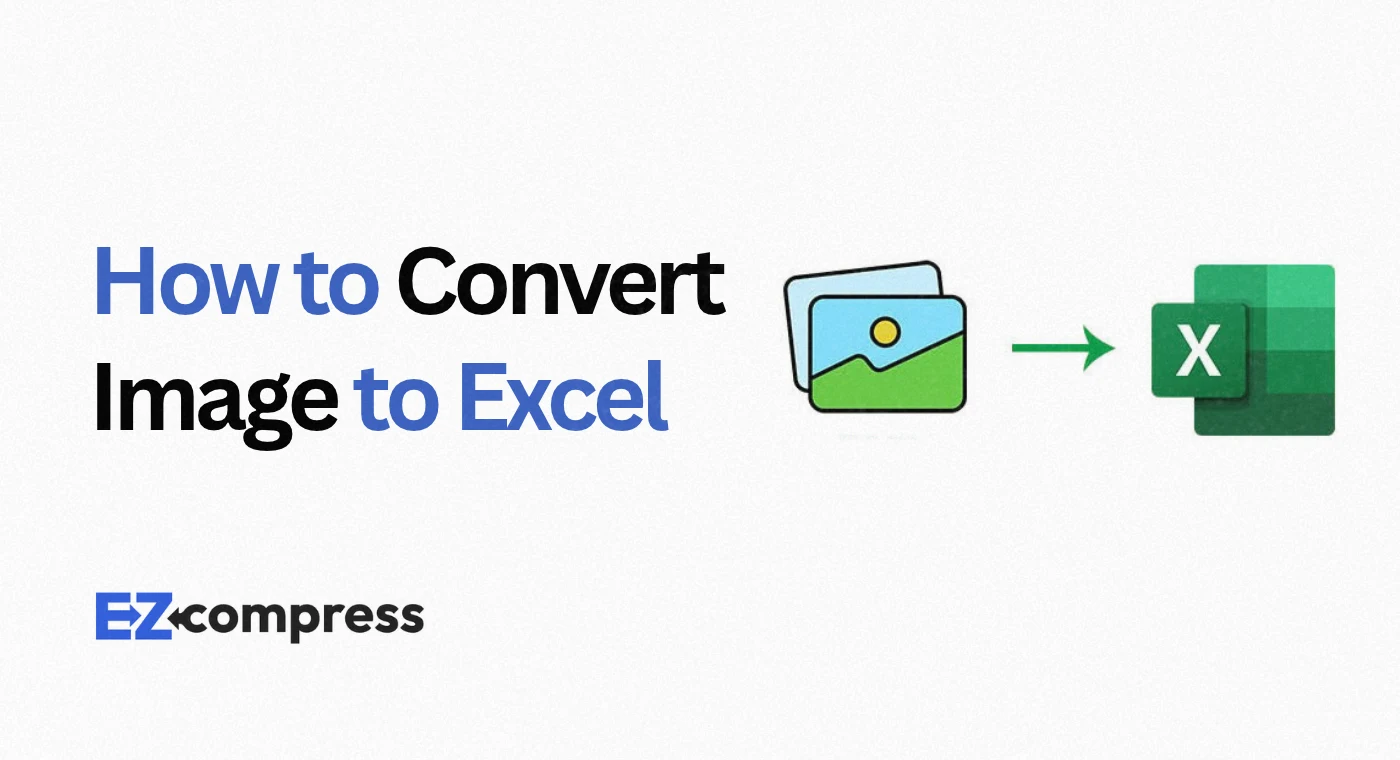
You have a photo of a printed table, a screenshot of a report or a scanned invoice, and you need the numbers in a spreadsheet. Retyping 200 cells is not the answer. This guide compares three honest ways to turn an image to excel data, shows where each one wins, and tells you plainly where our own tool stops.
The Quick Answer
To convert image to excel, you extract the text from the picture with OCR (optical character recognition) and then place the values into cells. Microsoft 365 users can use the built in Data from Picture feature. Everyone else can run OCR in a free browser tool such as the EZ Compress Image to Text page, paste the result into Excel and split it into columns.
Why Image to Excel Is Harder Than Image to Text
A picture of a table holds two things: characters and structure. OCR is very good at the first and only fair at the second. A tool reads each line of text, but it has to guess where one column ends and the next begins. That is why some tools hand you a ready grid, while others give you plain text that you must split yourself.
Method 1: Excel's Built In Data from Picture
If you pay for Microsoft 365, this is the most direct route. In Excel go to Data, then From Picture, and choose Picture From File or Picture From Clipboard. Excel scans the image, shows you the result, and lets you correct mistakes before you click Insert Data.
Two limits matter. On Windows, Microsoft lists Windows 11 or Windows 10 version 1903 or later, plus the Edge WebView2 Runtime. And the supported languages are mostly European ones such as English, French, German and Spanish, so a table in Urdu, Arabic or Hindi is not on the list.
Method 2: The EZ Compress Image to Excel Workflow
Here is the honest part. The EZ Compress Image to Text tool does not export an XLSX file. It extracts text and gives you a copy button and a TXT download. For many tables that is enough, and it works like this:
1. Open the tool, drop in one or more images and choose the language.
2. Extract the text and click Copy.
3. Paste into cell A1 in Excel.
4. If everything landed in one column, select it and use Data, then Text to Columns.
What you gain is reach and privacy. The tool runs Tesseract inside your browser, so images and extracted text are not sent to our servers. It offers 20 languages, including Urdu, Arabic and Hindi. It is free with no watermark and handles batches. The first run per language downloads a model of roughly 3 to 15 MB, so expect a short delay.
Accuracy depends on the photo. The page cites about 98% for clean printed text at 300 DPI, which is a best case. Blur, shadows and handwriting lower it.
Method 3: Online Image to Excel Converter Websites
Searching for an image to excel converter online free brings up many upload based sites. Some rebuild the grid for you, which is a real advantage on complex tables. The trade offs vary by site: daily limits, watermarks, sign up walls and where your file is stored. Before uploading anything sensitive, read the privacy policy.

| FeatureExcel Data from PictureEZ Compress Image to TextTypical online converter | |||
| Cost | Needs Microsoft 365 | Free daily runs | Varies |
| Output | Cells inside Excel | Text, copy or TXT | Often XLSX or CSV |
| Languages | Mostly European | 20 listed | Varies |
| Privacy | Handled inside Microsoft’s app | Stays in your browser | Upload to a server |
| Table grid detection | Yes | No, split with Text to Columns | Varies |
| Works on phone | Mobile apps exist | Any modern mobile browser | Varies |
Side by Side: Which Image to Excel Converter Fits You?
Choose Excel if you already have Microsoft 365 and the language is supported. Choose EZ Compress when privacy, language coverage or cost matters most. Choose an online converter when you need an automatic grid and the file is not sensitive.
From Image to Excel Sheet: A Five Minute Clean Up
Getting text into cells is only half the job. To finish an image to excel sheet properly:
- Use Text to Columns with Tab or Space as the delimiter.
- Wrap messy cells in the TRIM function to remove stray spaces.
- Check letters that look like digits, especially O and 0, or l and 1.
- Convert number columns from text to numbers and test with a SUM.
- Keep the source image beside the sheet and spot check every total.
Excel to Image: Going the Other Way
Sometimes you need a picture of your sheet for a slide or a chat. Select the range, open the Copy menu on the Home tab, choose Copy as Picture, then paste into an image editor and save. Microsoft documents the steps in its guide to creating a picture from cells (https://support.microsoft.com/en-US/Excel/create-a-picture-from-cells-a-chart-or-an-object-in-excel). An excel to image converter website works too, but a screenshot is quicker for small tables. Remember that the picture is no longer editable data.
How to Insert Image in Excel (It Is Not the Same Thing)
Inserting a picture does not convert it. To add one, go to Insert, Pictures, and choose Place in Cell or Place over Cells. Supported types include JPG, PNG, BMP, WEBP, TIFF and static GIF. One catch: inserting several pictures at once starts at the active cell and runs down the column, overwriting any values in those cells.
3 Tips for Better Results
Tip 1: Crop to the table only. Extra logos confuse OCR.
Tip 2: Photograph straight on. Angled shots bend rows and break columns. Aim for about 300 DPI.
Tip 3: Split big tables. Capture a long table in sections and paste each result under the last.
Final Thoughts
There is no single best way to convert image to excel, only the best fit for your file. Need an image to excel converter free to use, with privacy and many languages? Try the EZ Compress Image to Text tool and finish the table in Excel in a few minutes.
Every compressor runs in your browser, so your file stays on your device.
Open the compressors