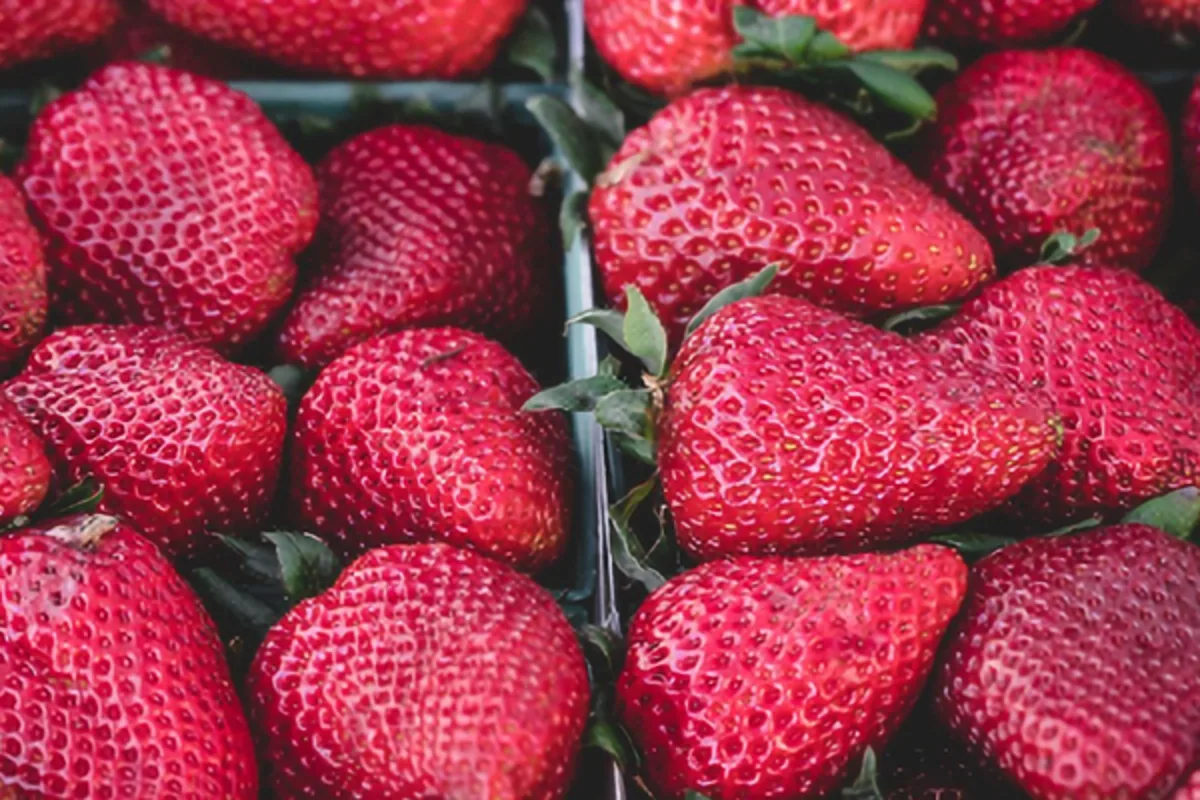
Ordinary resizing just stretches pixels, so enlarged photos go soft. This upscaler runs a super-resolution model (Swin2SR) in your browser that reconstructs edges and texture while enlarging 2× or 4×, tile by tile so large photos fit in memory. For a quick result without any download, Fast mode uses Lanczos resampling with a light sharpen, which is already much crisper than a normal resize. Either way, the photo never leaves your device.
What is Upscale Image?
Our upscale image tool enlarges photos 2x or 4x while keeping them looking sharp. In AI mode, a super-resolution model called Swin2SR runs in your browser and reconstructs edges and texture as it enlarges. In Fast mode, a high-quality Lanczos resampler with adjustable sharpening gives an instant result with no download.
It is made for small or low-resolution images that look soft when stretched: old photos, product shots from a supplier, thumbnails you need at a bigger size, or images for print. A 100% zoom comparison shows a plain resize next to the upscaled result, so you can see the difference. Your photo never leaves your device.
How to upscale image
- Drop a photo (small or low-resolution images benefit most).
- Choose AI or Fast, and 2× or 4×.
- Compare at 100% zoom, then download.
How Upscale Image works
A normal resize has no new information to work with, so it fills the gaps between pixels by averaging their neighbours. The result is bigger but soft. Lanczos resampling, used in Fast mode, is a sharper mathematical method that weighs more neighbouring pixels in a smarter pattern, and a light sharpen afterwards makes edges crisper still.
AI super-resolution works differently. Swin2SR is a neural network trained on many pairs of small and large images, so it has learned what edges, hair, text and textures should look like. It predicts plausible detail at the larger size rather than just blending pixels. To fit large photos in memory, the image is processed in 192 px tiles with a small overlap, so the seams blend invisibly.
The model runs on your graphics chip via WebGPU when the browser supports it, and falls back to WebAssembly on the processor when it does not. The 2x model is about 7 MB and the 4x model about 21 MB, each downloaded once.
Key features of Upscale Image
AI upscaling with no fees
Enlarge images at 2x or 4x, in AI or Fast mode, with no fees and no watermark. The computing happens on your own device, so nothing is metered.
Exact 2x and 4x output
The result is exactly twice or four times the original width and height, shown before you start. A 100% zoom slider compares the same pixels against a plain resize, and you can click any area to inspect it.
Instant or AI quality
Fast mode finishes almost instantly at any size. AI mode takes about 3 seconds per tile on a GPU, so an 800x600 photo takes around 40 seconds at 2x. The tool estimates the time before you begin.
GPU or CPU, it adapts
On a device with WebGPU the model uses your graphics chip; elsewhere it runs on the processor with WebAssembly. It works in current Chrome, Edge, Safari and Firefox on desktop and mobile, slower on CPU.
Clear progress and choices
Method and scale are labelled options, a progress bar and status line show model loading and tile progress for screen readers, and there is no time limit on long jobs. Dark mode is supported.
Enlarged on your device
Only the model files are downloaded; your image stays in your browser. Both the AI and Fast methods run inside your browser, which you can confirm in your browser's network tab.
What makes EZCompressor's Upscale Image different
Real AI in the browser
Most AI upscalers send your image to a server and charge per enlargement. Here the Swin2SR model runs locally, so private photos stay private and there is no per-image fee.
Proof at 100% zoom
Instead of a scaled-down preview, you get a before/after slider of the same region at full size, comparing a plain resize with the upscaled version. Click the thumbnail to check any other area.
A fast mode that needs nothing
If you cannot wait or are on a slow connection, Lanczos-3 resampling with adjustable sharpening gives a crisp result instantly, with no model download at all and no size limit.
PNG or JPG, no watermark
Download the enlarged image as a lossless PNG or a smaller JPG, at its full upscaled size, with nothing stamped on it and no reduced preview standing in for the real file.
Why use Upscale Image?
Stretching a small image in a design app or document makes it blurry and pixelated. When you need a bigger version of a logo, a product photo or an old family picture and the original is all you have, an AI image upscaler gives a far cleaner result than an ordinary resize.
It helps for printing too, where you need more pixels to reach a good DPI, and for websites that need a sharper hero image than the source allows. Small, low-resolution images benefit most. AI mode works best on inputs up to about 4 megapixels, while Fast mode handles any size quickly.
Who can use Upscale Image?
Online sellers
Enlarge small supplier product photos so they meet a marketplace's minimum size and still look sharp when shoppers zoom in.
Family historians
Upscale small scans of old family photos before printing them larger, reconstructing the edges that a plain enlargement would blur.
Bloggers and web designers
Turn a small image into a crisp blog header or hero picture when a higher-resolution original is simply not available.
Print shops and designers
Increase the pixel dimensions of client artwork to reach the resolution needed for large posters, shop banners and printed flyers.
Gamers and modders
Enlarge screenshots, sprites and textures for wallpapers and fan art, comparing the AI and Fast modes on the same picture.