

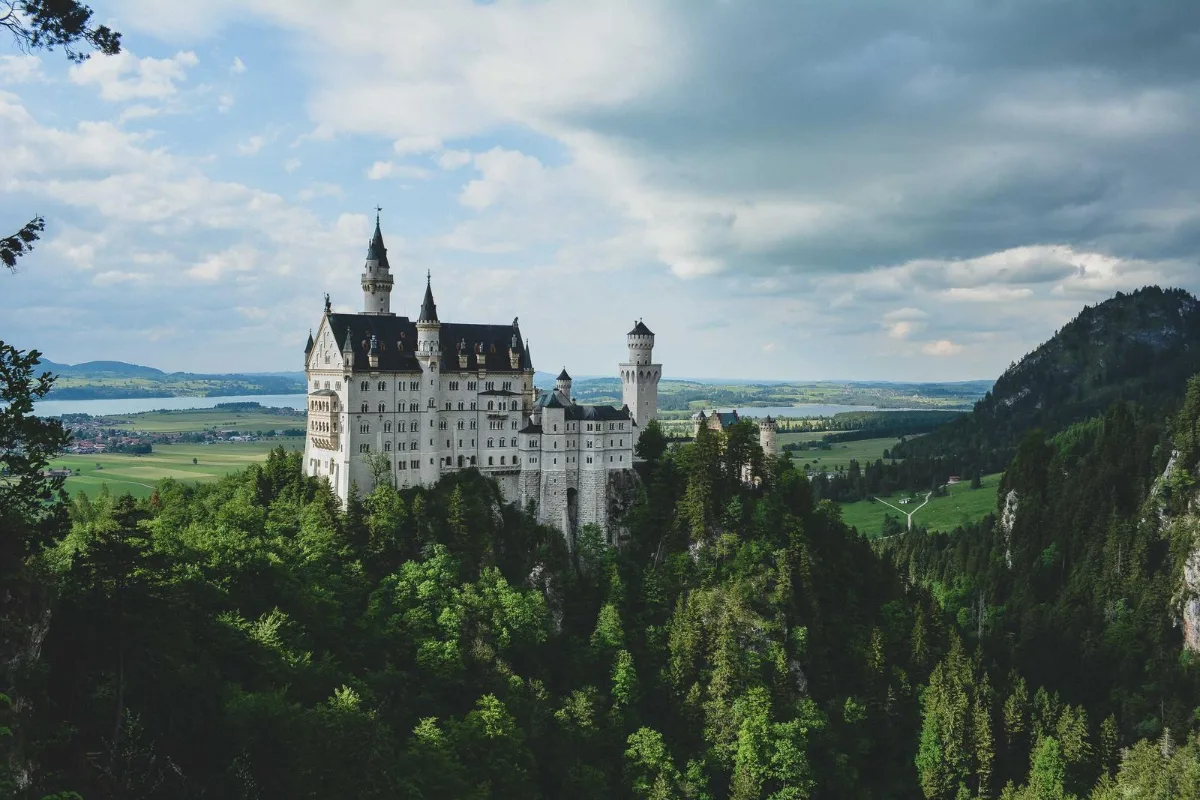
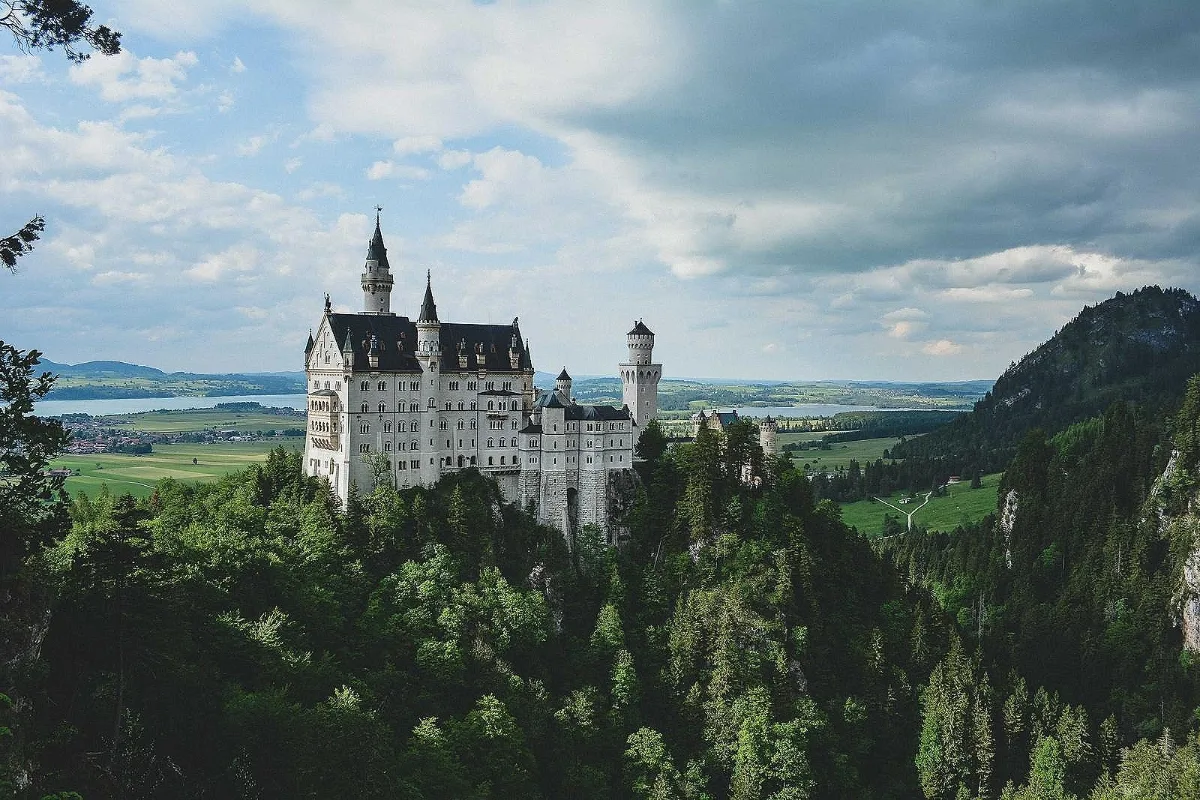
Sharpening boosts contrast along edges so slightly soft photos look crisp. It cannot fix motion blur or missed focus, but it makes resized and scanned images noticeably cleaner.
What is Sharpen Image?
Our sharpen image tool makes slightly soft photos look crisper by boosting contrast along edges. You set the strength from 10% to 200% and apply it to one picture or a whole batch, with the result saved at the original size.
It is most useful on images that have been resized, scanned or compressed, all of which tend to lose a little edge definition. Product shots, scanned documents, screenshots shrunk for a website and phone photos taken in dim light can all look noticeably cleaner after a light pass. Sharpening cannot rescue a photo that missed focus entirely, but it can make a good photo look its best.
How to sharpen image
- Drop images.
- Set the strength (50–80% is natural).
- Download.
How Sharpen Image works
Our eyes judge sharpness by how abruptly brightness changes at an edge. Sharpening exaggerates that change: along an edge, the darker side is made a little darker and the lighter side a little lighter. The edge itself does not move, but it appears more defined.
The tool does this with a small convolution filter, the same idea behind the classic unsharp mask. For each pixel it compares the value with its four direct neighbours and adds back a share of the difference. In flat areas the neighbours are similar, so little changes. At edges the difference is large, so the contrast increases. The strength setting controls how much of that difference is added.
Because the filter reacts to any difference between neighbours, it also amplifies noise and compression artefacts. That is why moderate settings of 50–80% usually look most natural. All processing happens in your browser.
Key features of Sharpen Image
Sharpen batches for free
Sharpen a single photo or a whole folder in one run, with no watermark. Download each file or the full set as a ZIP.
Strength in 5% steps
Set the strength anywhere from 10% to 200% in 5% steps, so you can apply exactly the same amount of sharpening to every image in a product range or a scanned document set.
Crisp edges in seconds
With no server queue to wait in, most photos are sharpened in a second or two. The time depends on the image size and your device, and batches run one after another without any waiting room.
Fix photos on any device
Sharpen pictures straight from your phone's camera roll or your laptop's folders. Works in current Chrome, Edge, Safari and Firefox on Windows, macOS, Linux, iPhone, iPad and Android with nothing to install.
Accessible strength slider
The strength slider moves with arrow keys, buttons and fields have clear labels, Enter starts processing and progress is announced to screen readers. Dark mode and browser zoom are fully supported.
Edited on your device
Your photos are sharpened locally and never sent to a server, which you can confirm in the browser's network tab. Once the page is open, the tool keeps working offline.
What makes EZ Compress's Sharpen Image different
Honest about limits
Some tools promise to fix any blurry photo. Sharpening improves soft edges, resized images and scans, but it cannot undo motion blur or missed focus, and this page tells you so up front.
Same settings across a batch
Drop a whole set of product photos or scanned pages and sharpen them all at one strength, so they look consistent side by side. Download them as a single ZIP.
Full resolution, no watermark
The sharpened image is the same width and height as the original, saved in a matching format, with nothing stamped on it and no reduced-size preview standing in for the real file.
Why use Sharpen Image?
Resizing a photo down for a website or marketplace averages pixels together, and the result often looks a little dull. A light sharpen after resizing brings back the crisp look of the original. The same applies to scans, which are usually slightly soft, and to text in screenshots that has been scaled.
It is also a good idea to sharpen an image as a final step before printing or posting, when you want a product, a face or a landscape to look clear at a glance. If you need to enlarge a small image as well, the Upscale Image tool reconstructs detail first, and you can sharpen the result afterwards.
Who can use Sharpen Image?
Online sellers
Sharpen product photos after resizing them for a shop or marketplace, so textures, stitching and labels look clear in small thumbnails.
Office workers
Clean up scanned receipts, forms and letters so the text is easier to read on screen and survives compression in emails and PDFs.
Hobby photographers
Give phone and camera shots a final crisp pass before sharing, without opening a full editing app or learning layers and masks.
Students
Make photos of whiteboards, lecture slides and textbook pages more legible before adding them to revision notes or shared study documents.
Settings explained
| Setting | What it does |
|---|---|
| Strength | Strength of the effect. |