
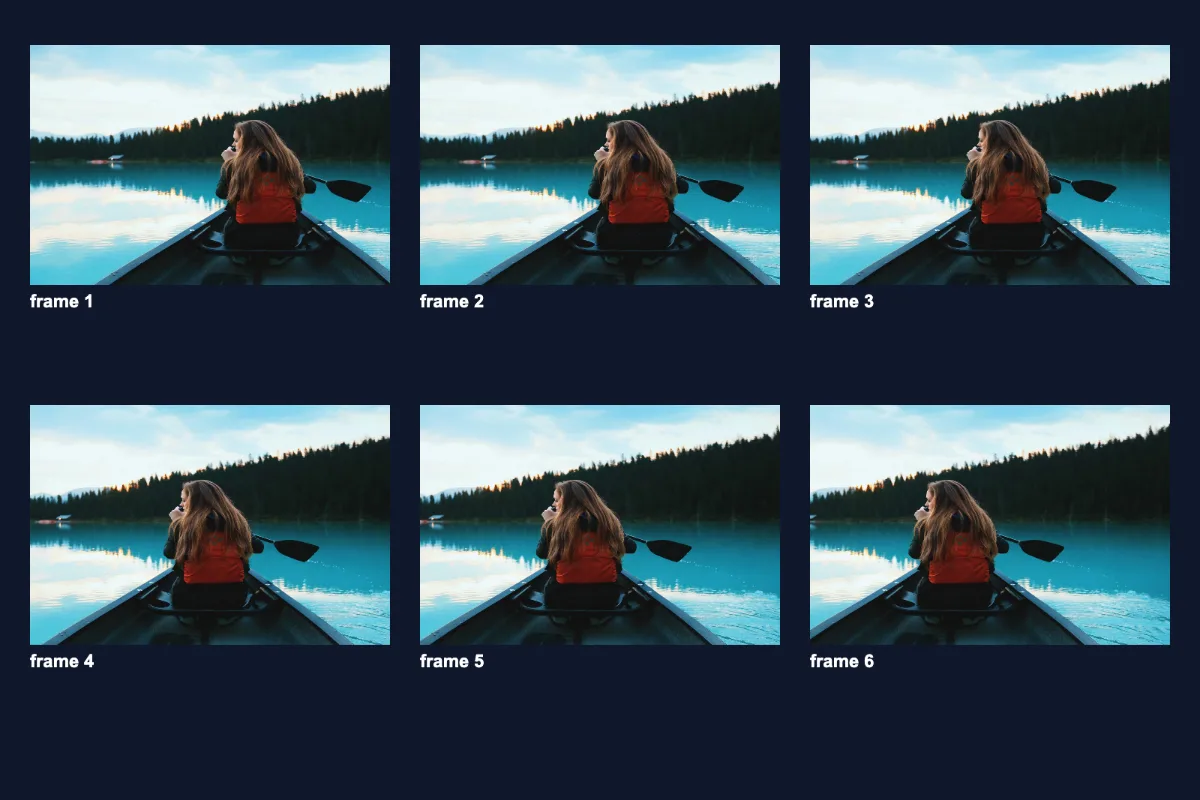
Convert an MP4 to GIF without sending the video anywhere. Trim to the moment you want, pick a width, and encode locally. Ideal for product demos, bug reports and reaction GIFs.
What is MP4 to GIF?
This mp4 to gif converter takes an MP4 clip and turns a section of it into a looping animated GIF, right in your browser. You choose the exact start and end with a trim slider, then set the width and the frame rate to balance quality against file size.
MP4 is the format most phones, screen recorders and cameras save, but it does not autoplay everywhere. A GIF does: in Slack, Teams, Discord, email newsletters, Notion pages and forum posts. It is ideal for product demos, bug reports and reaction clips that need to play on sight.
How to convert MP4 to GIF
- Drop the MP4.
- Trim, set width and FPS.
- Make GIF and download.
How MP4 to GIF works
An MP4 file is a container, usually holding H.264 video and AAC audio. H.264 achieves small files by predicting motion: most frames only store what changed since the previous one. A GIF stores every frame in full, each with its own palette of at most 256 colours, so smooth gradients can show slight banding and the file grows quickly.
During conversion, your browser decodes the MP4, the tool seeks to each moment in your trimmed range at the chosen frames per second and draws it at the width you picked, keeping the aspect ratio. A GIF encoder then reduces each frame to its best 256 colours and writes the animation, set to loop forever.
The sliders control size directly. Halving the width cuts each frame to a quarter of the pixels, and dropping from 24 to 12 FPS halves the number of frames. Because the work happens on your device, the MP4 is never sent anywhere, and the audio track is simply left out.
Key features of MP4 to GIF
Free with no watermark
Convert MP4 clips with no logo burned into your GIF and no short length cap. The result downloads directly, ready to drop into a chat, page or email.
Width and FPS you set
Choose any width from 160 to 1080 pixels in 20-pixel steps and any frame rate from 5 to 30 FPS. The trim slider works in tenths of a second, and an estimated frame count is shown before you encode.
Short clips in seconds
With no server trip, a few seconds of MP4 at 480 px usually becomes a GIF in moments. Encoding uses two background workers, and time grows with the number of frames and the width you choose.
Converts right on your phone
Pick an MP4 from your camera roll on iPhone or Android, or drop one from a folder on Windows, macOS or Linux. It works in Chrome, Edge, Safari and Firefox with nothing to install.
Arrow-key adjustable sliders
Every slider can be adjusted from the keyboard, with labels that show the current trim, width and frame rate as text. Progress is announced to screen readers, and dark mode is available.
Clips stay on your device
Product demos before launch, internal screen recordings and personal videos are converted in your browser tab. Nothing is sent to a server, so you can turn sensitive footage into a GIF safely.
What makes EZCompressor's MP4 to GIF different
Exact trim with preview
Moving the trim slider jumps the video preview to that point, so you see the first frame of your GIF before encoding. That is more precise than typing timestamps and hoping.
Loops like chat apps expect
GIFs made here loop forever, which is what Slack, Discord, browsers and email clients expect for reaction and demo clips. There is no extra loop setting to remember or get wrong.
No server, no queue
Many online converters send the whole MP4 to their servers before they start. Here there is no transfer wait, no file size limit set by a server, and no copy of your clip kept anywhere.
Why use MP4 to GIF?
Use it when you want motion that plays without a click. A GIF of a new feature in a release note, a short loop of a bug in a ticket, or a reaction in a group chat all play instantly where MP4 might show a play button or not embed at all. Converting mp4 to gif keeps the moment and loses the friction.
It is also useful for documentation and slides. A 4-second loop showing where to click explains more than a paragraph of text. Keep it to a width of 480–640 px and 12–15 FPS for a GIF that looks clean and still loads quickly on mobile connections.
Who can use MP4 to GIF?
Product managers
Turn MP4 screen recordings of new features into GIFs for release notes, changelogs and internal updates that play automatically for every reader.
QA testers
Attach a short GIF of a bug reproducing to a ticket, so developers see the exact steps without opening a video player.
Community managers
Create on-brand reaction GIFs and event teasers from MP4 clips for Discord servers, community forums and social posts, without any editing software.
Email marketers
Convert a product video into a light animated GIF for newsletters, since most email clients show GIFs but not embedded video.
Bloggers
Add short animated how-to steps to tutorials, craft guides and recipes, made from MP4 clips you filmed on your phone.