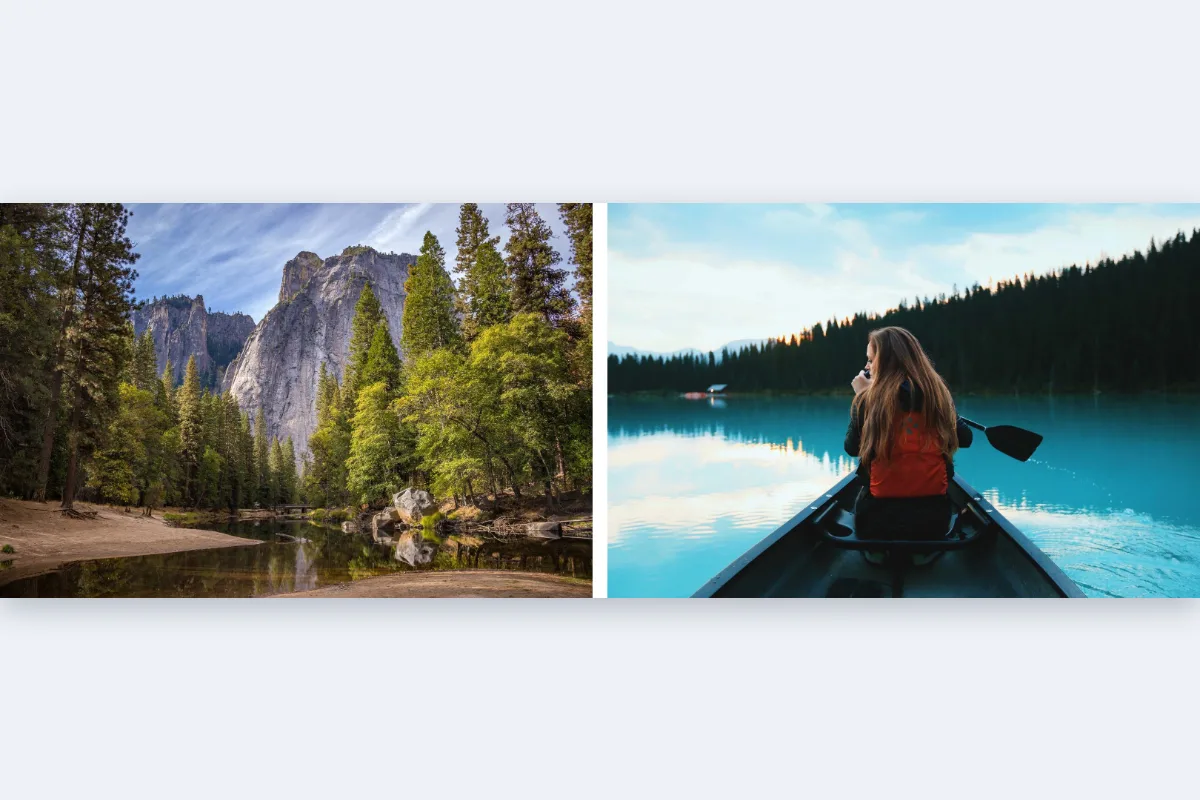
Join screenshots into one long image, put before/after photos side by side, or stack scans into a single file. Choose the direction, gap and how to align images of different sizes.
What is Merge Images?
Use this tool to merge images into a single file, either side by side in a row or stacked in a column. Add two or more pictures, put them in order, choose a gap and background colour, and download the combined result as a PNG.
It is the quickest way to join screenshots into one tall capture, place before and after photos next to each other, or combine scanned pages into one image for a form that accepts a single upload. There is no fixed limit on how many images you add.
How to merge images
- Drop images in order.
- Pick horizontal or vertical, set the gap.
- Download the merged image.
How Merge Images works
Merging places images on one canvas. For side by side, the canvas width is the sum of all widths plus the gaps, and its height is the tallest image. For stacked, it is the other way round. Any space not covered by an image is painted with your background colour.
Images rarely share the same size, so there are two ways to handle that. Scale to match resizes every image to the same height (side by side) or width (stacked), using the smallest one as the target, so edges line up neatly with no gaps. Keep sizes leaves every image at its original pixel size, aligned to the top or left edge, with the background filling the rest.
The result is saved as a lossless PNG, so text in screenshots stays sharp. It is all done in your browser.
Key features of Merge Images
Free merging, any number of inputs
Combine as many images as you like in one merge at no cost, with no watermark. Merge two screenshots or twenty scanned pages and download one clean PNG with nothing added.
Edges that line up
Scale to match gives every image exactly the same height or width, so rows and columns meet in straight lines. Gaps are set in exact pixels from 0 to 100.
Live preview while you edit
The merged preview redraws as soon as you change direction, gap, size handling or colour, because it is built on your device. The final download takes about a second on most devices.
Join images on mobile
Choose screenshots from your phone's gallery and merge them in Safari or Chrome on iPhone or Android. It also runs on Windows, macOS and Linux, with no install, and your images stay on your device.
Keyboard-friendly image ordering
Each thumbnail has labelled buttons to move it earlier or later or remove it, so you can set the order without dragging. Direction and size options are segmented controls you can reach with Tab.
Screenshots kept private
Chat logs, bank screenshots and documents are merged inside your browser tab and never sent to a server. Open the network tab while you work and you will see no image being sent.
What makes EZCompressor's Merge Images different
Two clear size options
Choose Scale to match for tidy, aligned edges, or Keep sizes to preserve every image's original pixels. Many tools resize silently without telling you. Pick whichever suits the job and check the result in the preview.
Lossless PNG output
The merged file is PNG, so text in screenshots, chat messages and documents stays crisp instead of picking up JPEG blur around letters and thin lines, which matters for anything people need to read.
Any number of images
There is no small cap on inputs. Add images in one go or use the Add button to bring in more, then reorder them before downloading. The order is easy to change.
Why use Merge Images?
Some forms and apps accept only one file, and many people find a single image easier to view than several attachments. When you merge images into one file, a long conversation, a multi-step tutorial or a two-page document becomes a single, easy-to-share picture.
Placing two images side by side is also the clearest way to compare them. Before and after edits, product variants and design options are easier to judge when they sit next to each other at the same height, with a small gap to separate them.
Who can use Merge Images?
Support teams
Stack several screenshots of an error into one tall image so a ticket shows every step in order, in a single attachment.
Students
Join photos of two pages of handwritten work into one image for a learning platform that accepts a single upload per question.
Designers
Place design options side by side at the same height so clients can compare them at a glance in an email or chat.
Job applicants
Merge the front and back of an ID card or certificate into one file when an application form allows only one upload.
Social media users
Combine several chat or tweet screenshots into one long image to share a full conversation without posting multiple pictures in a row.