
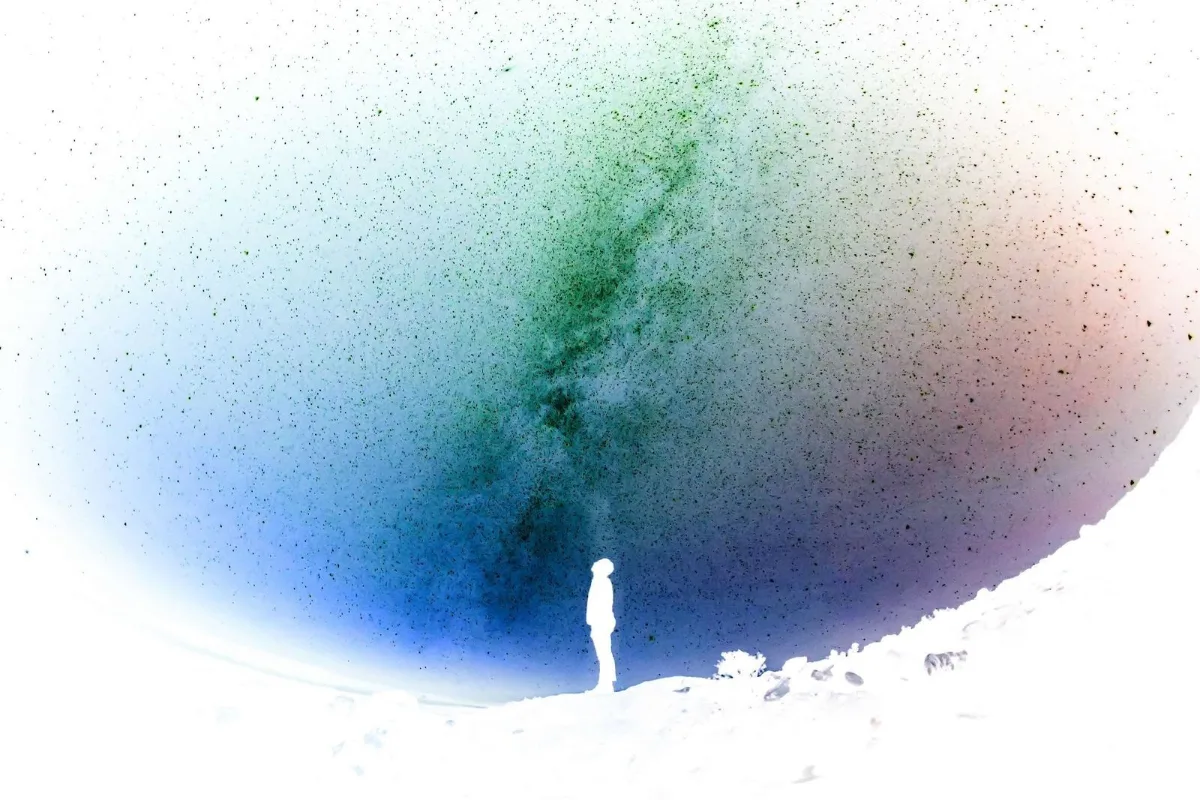
Produce a colour negative, flip a dark-mode screenshot to light (or vice versa), or recover a scanned film negative. Transparency is preserved.
What is Invert Image?
Our invert image tool flips every colour to its opposite, producing a photographic negative: black becomes white, blue becomes orange, green becomes magenta. It takes a single click, with no settings to fiddle with, and works on one image or a whole batch.
Inverting is useful in more situations than you might expect. It turns a dark-mode screenshot into a light one for printing, makes white-on-black diagrams readable on paper, recovers a positive image from a scanned film negative, and creates striking artistic effects. Transparent areas in PNG and WEBP files are left untouched, so logos and icons keep their shape.
How to invert image
- Drop images.
- Click Invert.
- Download.
How Invert Image works
Each pixel in a digital image stores red, green and blue values from 0 to 255. Inverting subtracts every value from 255. A pure white pixel (255, 255, 255) becomes black (0, 0, 0), and a sky blue such as (100, 160, 230) becomes a warm orange (155, 95, 25). Because each channel flips independently, every colour turns into its complement on the colour wheel.
The alpha channel, which stores transparency, is not changed. A logo on a transparent background stays on a transparent background; only the visible colours flip. Inverting twice gives you back the original image exactly.
A word on film: colour negatives have an orange base layer, so a straight inversion of a colour negative scan looks blue-tinted and may need colour correction afterwards. Black and white negatives invert cleanly. The tool runs on a canvas in your browser.
Key features of Invert Image
Free one-click negatives
Invert a batch of images in one run with no watermark. Drop a batch and download every file or a single ZIP.
Exact 255 minus value
Every red, green and blue value is flipped precisely, so inverting twice returns the original colours. Transparency is preserved pixel for pixel, and the output keeps the original width and height.
Invert image with no settings
There are no options to choose, so the inversion runs as soon as you start it. Without a server trip or queue, most images are done in under a second, and batches follow straight after.
Works in every browser
Invert screenshots and scans on Windows, macOS, Linux, iPhone, iPad or Android using current Chrome, Edge, Safari or Firefox. No software or app download is needed, and the page can be installed as an app.
One-button keyboard simplicity
With a single labelled button, the tool is easy to use by keyboard alone: Tab to it and press Enter. Progress is announced to screen readers, dark mode is available and there are no time limits.
Images processed locally
The inversion happens in your browser tab and your images never leave your device. You can confirm it in the network tab, and the page keeps working offline once it has loaded.
What makes EZCompressor's Invert Image different
Keeps transparency intact
Some inverters flatten transparent PNGs onto a white or black background first. Here only the colours flip and the alpha channel is left alone, so icons and logos stay ready to place on any background.
Batch inversion with ZIP
Invert a whole folder of screenshots, diagrams or negative scans in one go and download them as a single ZIP, instead of opening and saving each file in an editor one at a time.
Original format kept
PNG stays PNG, JPG stays JPG and WEBP stays WEBP, at full size. There is no forced conversion to another format, no resized preview and no watermark on the inverted file.
Why use Invert Image?
Dark-mode screenshots look great on screen but waste ink and print poorly. Inverting image colours turns white text on black into black text on white, so code snippets, terminal output and app screens print clearly in documents and handouts.
It also helps with old film. If you have scanned black and white negatives with a flatbed scanner, you can invert each image to get viewable positives in seconds. Designers use the negative effect for posters and album art, and some people find inverted diagrams easier to read in low light.
Who can use Invert Image?
Developers and technical writers
Turn dark-theme code and terminal screenshots into light versions for printed documentation, slides with white backgrounds or downloadable PDF manuals.
Film photographers
Convert scanned black and white negatives into positive images for a quick preview before deciding which frames to print or scan properly.
Teachers
Invert black-background diagrams, maps and worksheets so they print clearly for the class and save toner on busy school printers.
Graphic designers
Create negative versions of logos and icons for use on dark backgrounds, while keeping every transparent area exactly as it was.