

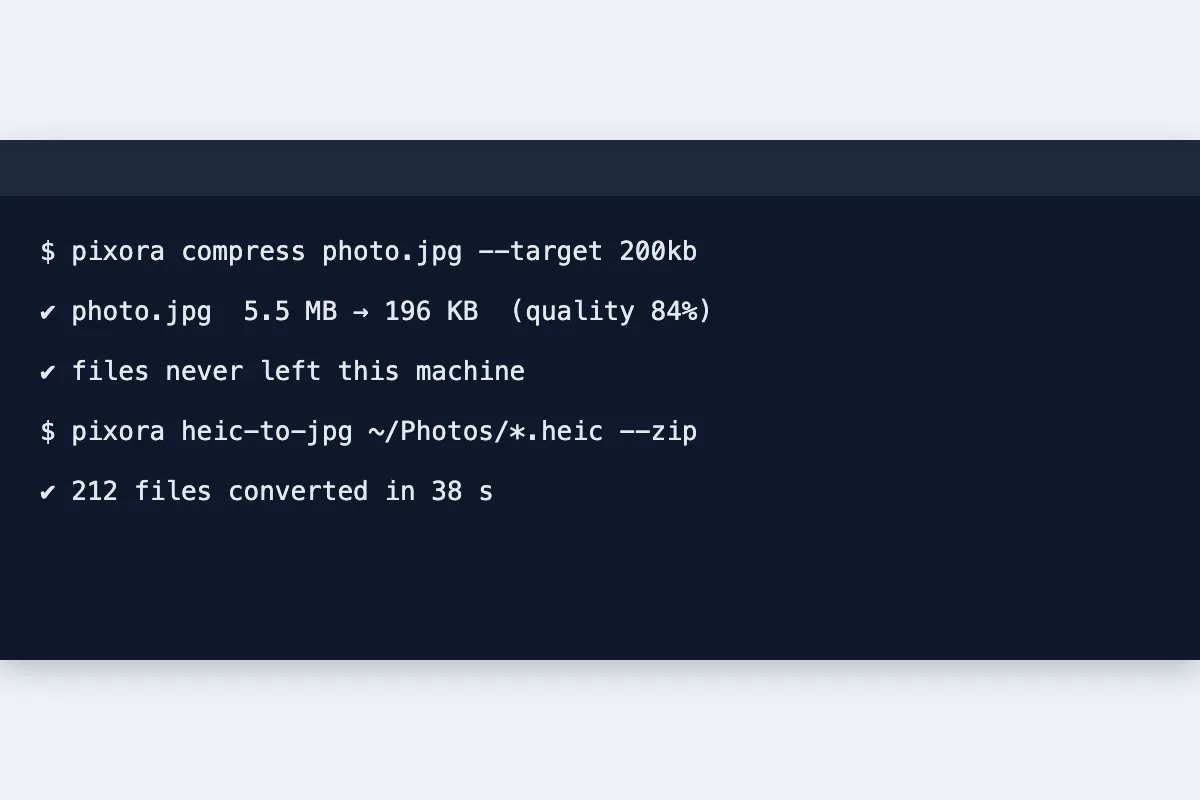
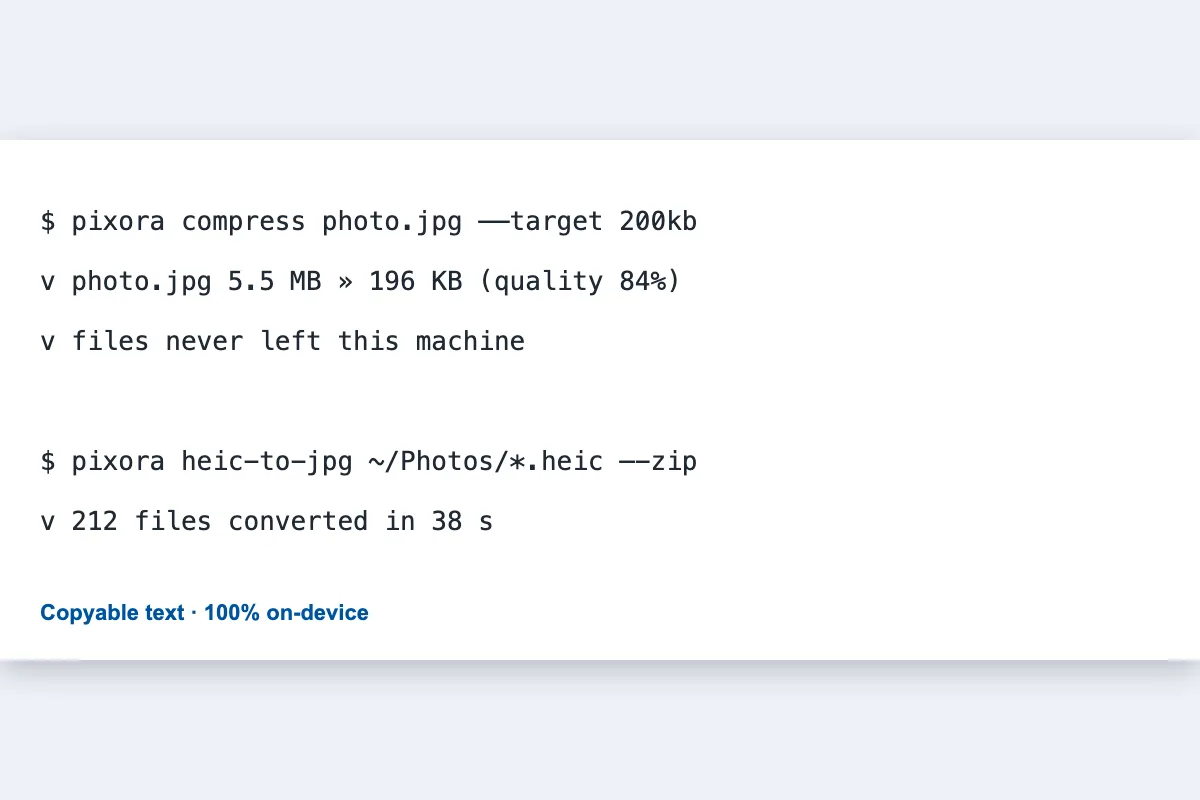
Error messages, chat screenshots, slides, posters: paste them with Ctrl/Cmd+V and copy the text back out in a second. Screenshots are high-contrast, so accuracy is excellent, and because recognition runs locally, private chats and documents are never sent to a server.
What is Copy Text From Image?
This tool lets you copy text from image files and screenshots in a couple of clicks: paste a screenshot with Ctrl+V (Cmd+V on a Mac) or drop a photo, and the words come back as plain text ready to copy. It is the quick screenshot to text shortcut for when you cannot select the words.
Text inside a picture is just pixels, so you normally have to retype it. Error dialogs, chat messages, slides in a video call, posters and menus all have this problem. Here, recognition runs in your browser and the text is one Copy button away.
How to copy text from image
- Paste a screenshot (Ctrl/Cmd+V) or drop an image file.
- Pick the language if it is not English and click Extract text.
- Click Copy, or download the text as a TXT file.
How Copy Text From Image works
When you take a screenshot, your computer saves the screen as an image. The letters look like text, but the file only stores coloured pixels, which is why you cannot highlight them. Getting the words back needs OCR (optical character recognition), which looks at the shapes and works out which characters they are.
Screenshots are close to ideal for OCR. The text is perfectly straight, evenly lit, high contrast and rendered in clean digital fonts, so accuracy is usually higher than with phone photos of paper. Small text helps less: zoom the source to 100% or more before you capture it.
The recognition here uses Tesseract running in your browser via WebAssembly, with a neural network that reads whole lines and uses context to pick the likeliest letters. The first run downloads the language model and caches it, and your screenshot is processed entirely on your own device.
Key features of Copy Text From Image
Free paste-and-copy OCR
There is no watermark, and your free runs refresh every day. Paste screenshots one after another; each gets its own Copy and TXT buttons, so you can extract text from image after image without starting over.
Excellent on screenshots
Because screenshots are sharp, straight and high contrast, recognition is usually near perfect for normal UI and document text. Very small fonts, stylised logos and text over busy backgrounds are the main sources of mistakes.
Paste, extract, done
Ctrl/Cmd+V adds a clipboard image instantly, with no saving to disk first. After the one-off model download, extracting text from a screenshot usually takes only a few seconds on a typical laptop.
Works on any screen
Use it on Windows, macOS, Linux, Chromebook, iPhone, iPad and Android in a current browser. On a phone, pick the screenshot from your gallery and tap Copy, with no app to install.
Keyboard-first by design
Pasting, extracting and copying all work from the keyboard, with labelled buttons and Tab navigation. Screen readers hear progress through a live region, dark mode suits long sessions, and there is no time limit.
Private chats stay private
Screenshots often contain private messages, emails or account details. When you copy text from image files here, recognition runs locally, so the picture stays on your device and only the language model is downloaded.
What makes EZ Compress's Copy Text From Image different
Clipboard paste built in
Many OCR sites make you save a screenshot as a file and then upload it. Here you can paste straight from the clipboard, which removes two steps every time you grab text from your screen.
Nothing leaves your browser
Screenshots of chats, error logs or dashboards can leak private information. Because OCR runs on your device, the image is never sent to a server, and you can verify that in the network tab.
One result per screenshot
Paste several screenshots in a row and each one keeps its own text box. You can copy just the one you need instead of searching through a single combined block.
Why use Copy Text From Image?
Use this whenever text is trapped in a picture and you need to copy text from image content quickly. Copy an error message from a screenshot into a search engine, lift a phone number or address from a photo, grab the text of a slide shared in a video call, or pull a quote from an image post. It works as a picture to text and photo to text tool for paper too, though screenshots give the cleanest results.
It is also useful for code and support work. Paste a screenshot of a stack trace or a config file and get text you can search or paste back into an editor. Indentation may need tidying, but it beats retyping long lines by hand.
Who can use Copy Text From Image?
Developers
Copy error messages, logs and code snippets out of screenshots that colleagues or users send in chat, then search or paste them straight into an editor.
Customer support agents
Extract order numbers, error codes and account details from customer screenshots without retyping, and keep those screenshots off third-party servers.
Remote workers
Grab the text of slides shared during video calls by screenshotting and pasting them here, so meeting notes contain the real wording.
Social media users
Copy a quote, recipe or list from an image post or story screenshot so you can save it, search it or share it as text.
Language learners
Paste a screenshot of a foreign-language sign, menu or subtitle, copy the text out and drop it into a dictionary or translator.