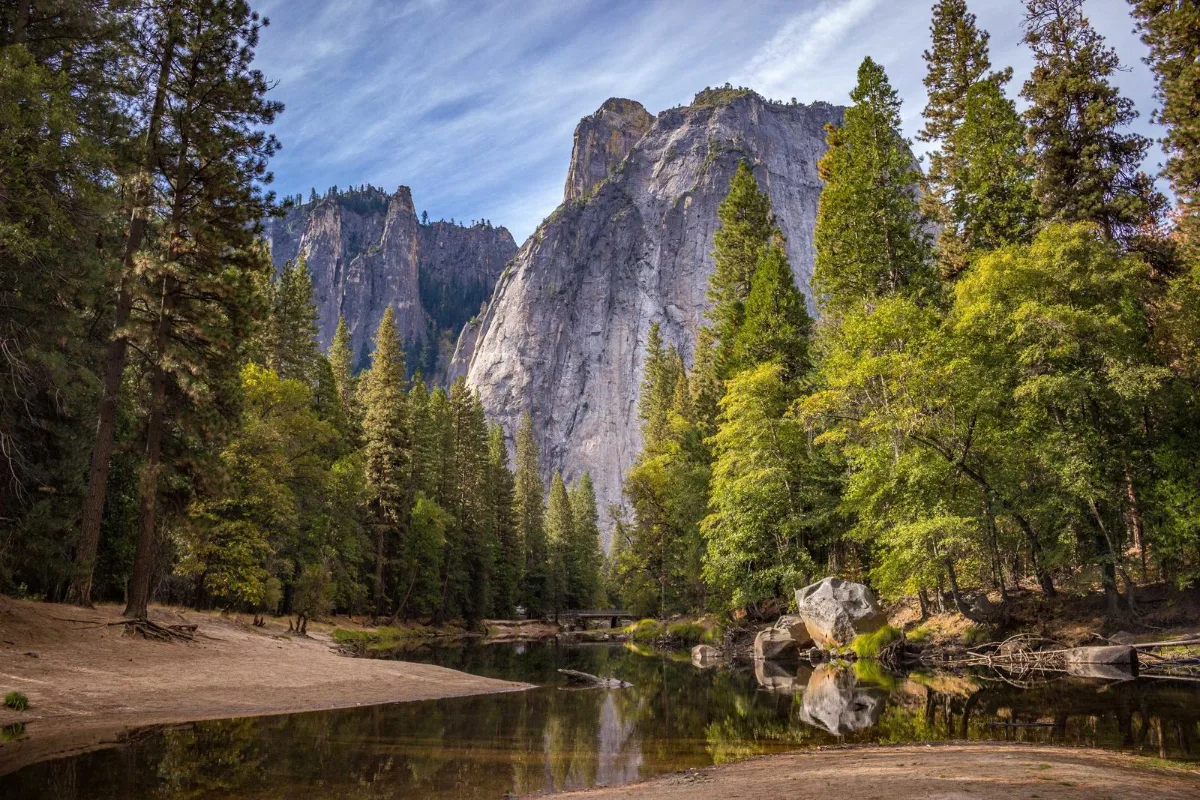
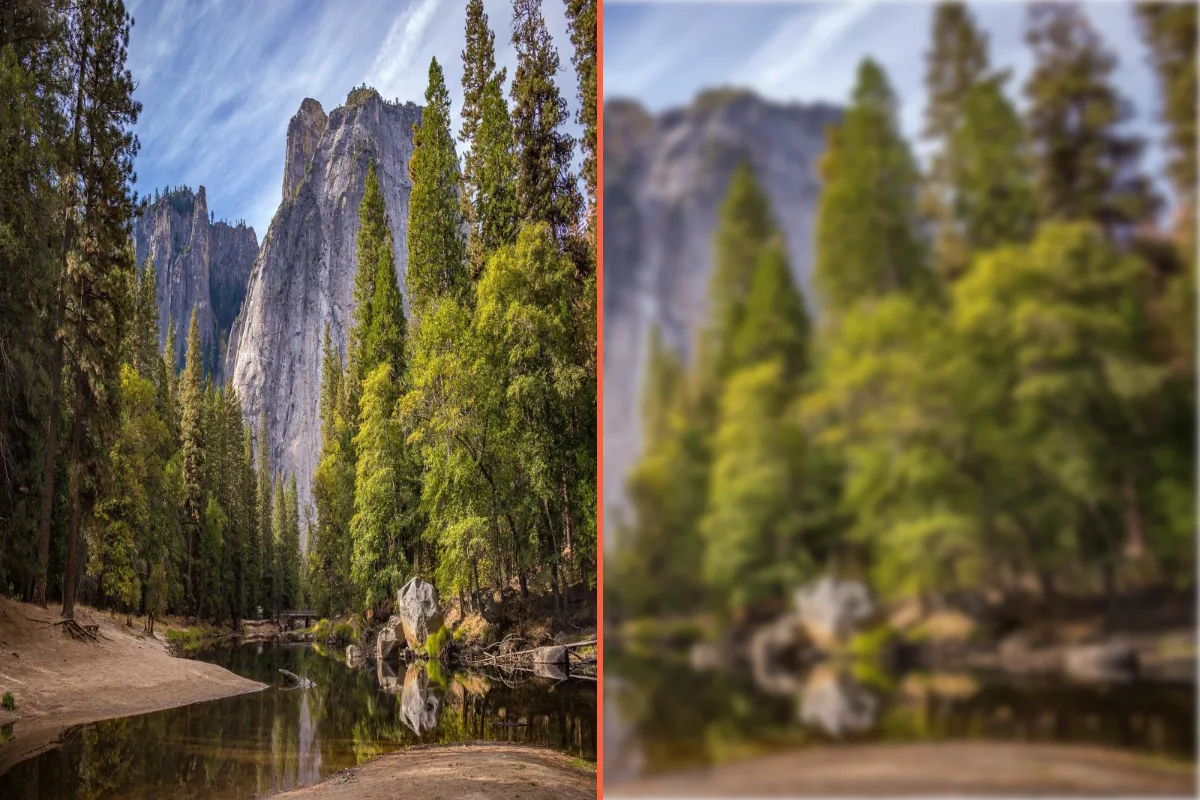
Check what a compressor, editor or AI model changed: drop two images, slide between them, or switch to Difference to highlight every pixel that differs. Useful for QA, design review and spotting edits.
What is Compare Images?
Our compare images tool puts two pictures side by side so you can see exactly how they differ. Use a before/after slider to wipe between them, view them next to each other, or switch to a difference view that highlights every changed pixel.
It answers questions like: what did that compressor change, did the editor touch anything else, is this the same photo or a slightly altered copy, and how does the new design differ from the old one? The tool also shows both file sizes and reports what share of pixels changed, so you can judge quality and file size together.
How to compare images
- Drop two images.
- Use the slider or switch to Difference view.
- Export the comparison if needed.
How Compare Images works
A difference view compares the two images pixel by pixel. For each position it measures how far apart the red, green and blue values are and draws that distance as brightness: identical pixels are black, small changes are dark grey, and large changes glow bright red. Areas that were edited, compressed heavily or moved stand out at once.
The tool also counts how many pixels differ noticeably and calculates the average difference per colour channel on a 0–255 scale. A heavily compressed JPG might show small differences spread everywhere, while a retouched photo shows a bright patch only where something was changed.
To compare like with like, the second image is scaled to match the first. Both images are decoded and compared in your browser, and the difference map can be downloaded as a PNG.
Key features of Compare Images
Free side-by-side checks
Compare image pairs for free, with no watermark on the difference map.
Pixel-level difference map
Every pixel is compared, not a sample. The tool reports the percentage of pixels that differ noticeably and the mean difference per channel, so small compression changes and real edits are easy to tell apart.
Instant three-way view
Switching between slider, side by side and difference is immediate. Because nothing goes to a server, the comparison is ready about a second after you drop the two images, depending on their size.
Slider works on touch
Drag the before/after slider with a mouse or finger. The tool works in current Chrome, Edge, Safari and Firefox on Windows, macOS, Linux, iPhone, iPad and Android with nothing to install.
Labelled modes and slider
The three view modes are a labelled switch you can reach with Tab and arrow keys, and the before/after slider is a standard range control. Before and After labels stay on screen.
Both images stay local
Neither image leaves your device, which matters when you are comparing unreleased designs or confidential documents. Everything is computed in your browser tab, and you can confirm it in the network tab.
What makes EZCompressor's Compare Images different
Numbers, not just visuals
Beyond the slider, you get a measured result: the share of pixels that changed and the average difference. That turns a gut feeling about quality into something you can report and compare.
Shows file sizes too
Both file names and sizes are displayed above the comparison, so you can weigh how much a compressed version saved against how much it really changed on screen and in detail.
Downloadable difference map
Save the highlighted difference image as a PNG to attach to a bug report, a design review or a client email, rather than trying to describe the change in words.
Why use Compare Images?
Before you swap a website's images for compressed versions, it is worth checking what was lost. Comparing two images with a slider at full size shows whether text edges, gradients and skin tones survived, and the difference view reveals banding or blockiness you might miss by eye.
Image diffs are also useful for spotting edits. If you have two versions of a photo, a logo or a document scan, the difference view shows exactly where they differ, whether that is a retouched blemish, a changed number or a moved element in a design.
Who can use Compare Images?
Web performance teams
Check compressed images against the originals before deploying, confirming that the file size saving did not cost visible quality on key pages.
QA testers
Compare screenshots from two builds of an app to find visual regressions, then attach the difference map to the bug ticket.
Photographers and retouchers
Show clients a before/after slider of an edit, or check that a retouch changed only the intended area and nothing else.
Designers
Compare two versions of a layout or logo to see precisely what changed between rounds of client or team feedback.
Fact-checkers
Compare a suspicious image with a known original to find any regions that were added, removed or altered before publishing.