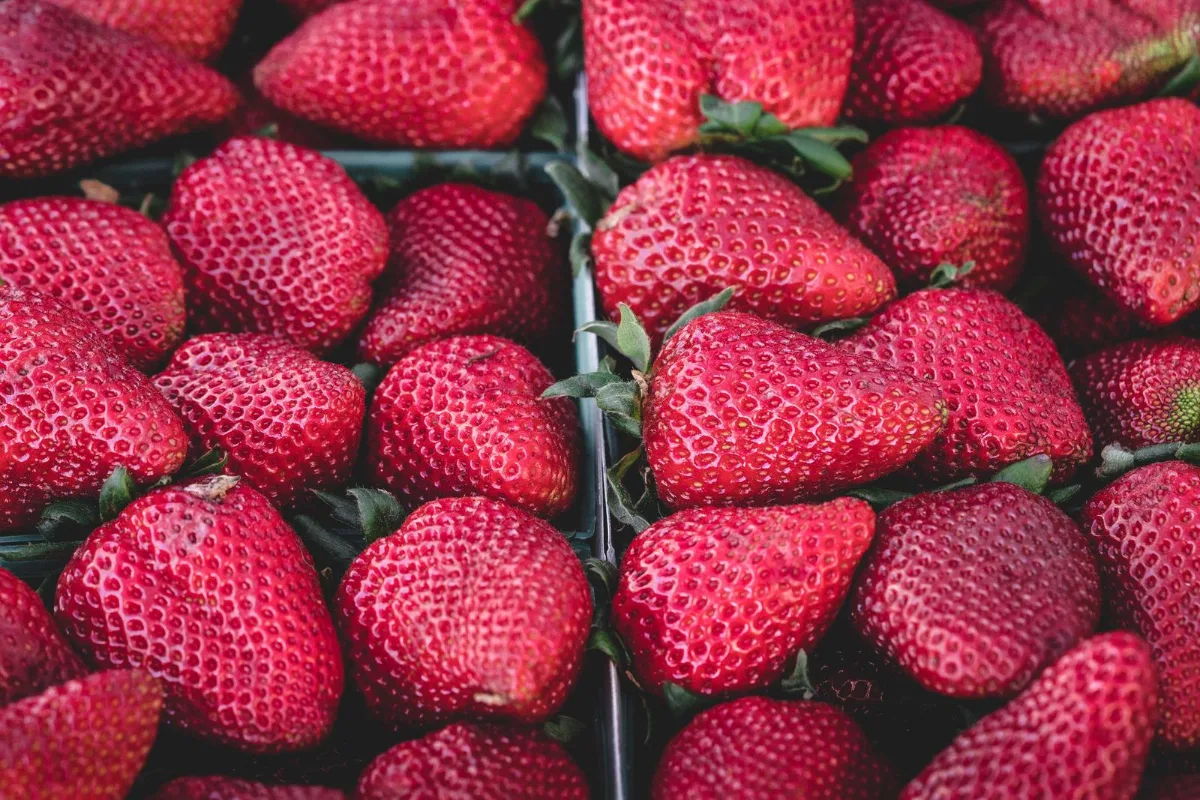
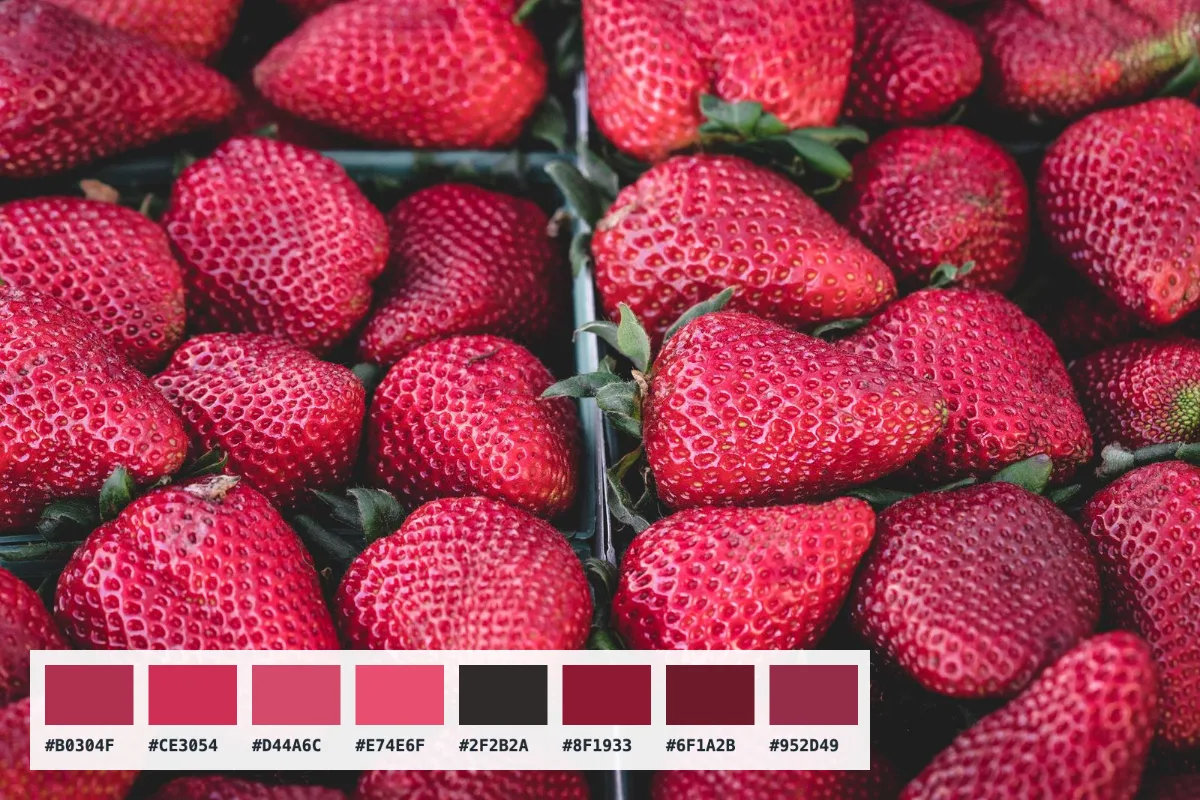
Hover and click to read exact colour values from any image, copy HEX/RGB/HSL with one click, and generate a palette of the dominant colours for brand or design work.
What is Color Picker from Image?
Our color picker from image tool reads the exact colour of any pixel in a picture and shows it as HEX, RGB and HSL. Move your cursor over the image to see values live, click to save a colour, and copy any code with a single click.
It also builds a palette of the eight dominant colours in the picture automatically, which you can copy as a list of HEX codes. That makes it quick to match a brand colour from a logo, pull a scheme from a photo for a website, or find the exact shade of a product for a print job. It all happens in your browser.
How to use the Color Picker from Image
- Drop an image.
- Click a pixel to read its colour; the palette appears below.
- Copy the values.
How Color Picker from Image works
Every pixel on screen is a mix of red, green and blue light, each stored as a number from 0 to 255. HEX writes those three numbers in base 16, so rgb(249, 98, 62) becomes #F9623E. HSL describes the same colour as hue (its position on the colour wheel), saturation (how intense it is) and lightness, which is often easier to adjust by hand when designing.
The dominant palette is found by sampling a small copy of the image and grouping similar colours into buckets. The buckets with the most pixels are averaged and shown as swatches, so the palette reflects what actually fills the picture, not just the brightest accents.
Values are read in the sRGB colour space that browsers display. A photo saved with a different embedded colour profile may read slightly differently from a desktop editor that applies that profile.
Key features of Color Picker from Image
Free codes and palettes
Pick as many colours as you like from any number of images, copy HEX, RGB or HSL codes and export palettes at no cost. There is no watermark and no paid tier.
Exact single-pixel values
Each reading comes from one pixel of the full-resolution image, not a blurred average, so you get the precise value stored in the file. HEX, RGB and HSL are shown together for every colour.
Live reading on hover
Colour values update instantly as you move across the picture, with no server involved and no processing delay. The dominant-colour palette appears as soon as the image opens, so there is nothing to wait for.
Desktop and mobile
Open screenshots, photos and logos from any device in current Chrome, Edge, Safari or Firefox on Windows, macOS, Linux, iPhone, iPad and Android, with no app or plugin to install.
Codes you can copy
Every HEX, RGB and HSL value is a labelled button that copies the code when activated, with a confirmation message. The page supports dark mode, browser zoom and small screens.
Images read locally
Pictures are opened only in your browser and never sent anywhere, so unreleased designs and client files stay private. You can confirm that nothing is sent in the browser's network tab.
What makes EZCompressor's Color Picker from Image different
Three formats at once
Many pickers show only HEX. Here every colour comes with HEX, RGB and HSL side by side, each one copyable, so you can paste straight into CSS, design software or a brand guide.
Automatic dominant palette
As well as picking single pixels, the tool extracts the eight colours that cover most of the image and copies them all as a comma-separated list for quick mood boards and themes.
Keeps a pick history
Clicked colours are saved in a list of up to twelve, so you can compare several shades from the same image before choosing one, without writing codes down as you go.
Why use Color Picker from Image?
Matching colours by eye is unreliable. If you need your website button to match a logo, a social graphic to match a product, or a slide theme to match a client's brand, a color picker from image files gives you the exact HEX code in seconds instead of guesswork.
The palette feature helps when you want a set of colours that already work together. A sunset, a product photo or a painting contains a natural colour scheme; pull its dominant colours and you have a starting point for a website, poster or presentation that feels coherent.
Who can use Color Picker from Image?
Web developers
Grab HEX or RGB codes from a mock-up or screenshot and paste them straight into CSS, without asking the designer for the exact values.
Brand designers
Pull exact colours from a client's existing logo or packaging photo to build a consistent brand palette and style guide.
Social media creators
Match text and background colours to a photo so graphics, highlights and story covers all feel like one coordinated set.
Interior and fashion fans
Find the exact shade of a fabric, wall or product in a photo, then use the code to search for matching paint or items.
Students
Pick colours from reference artwork or photos for design projects, and learn how HEX, RGB and HSL describe the same colour.