
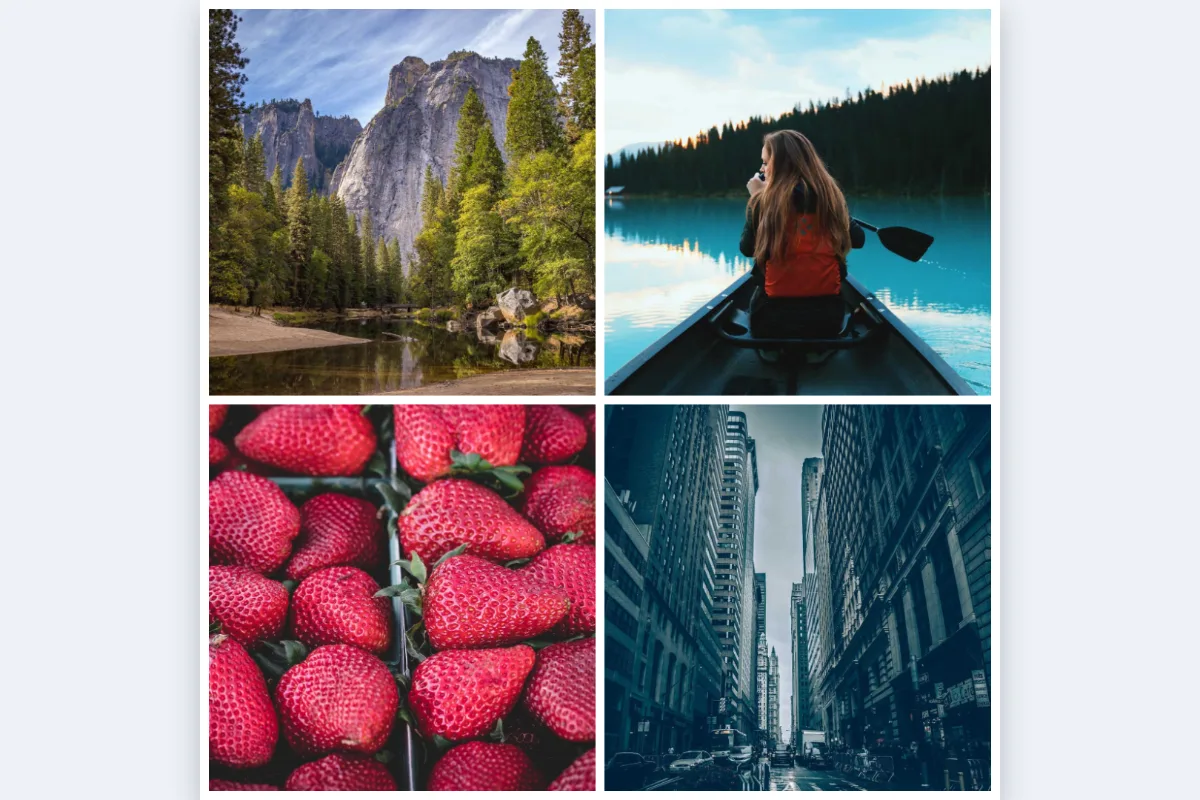
Drop photos, pick a grid, adjust spacing and background, and download a collage with no watermark. Great for before/after comparisons, product listings and social posts.
What is Collage Maker?
This collage maker arranges up to 12 photos into a neat grid and saves them as a single image. You choose how many columns to use, the spacing between photos, the background colour and the final size, then download a JPG with no watermark.
Collages are the easiest way to show several pictures in one post or slide: a before and after, a product from every angle, a weekend trip or a team line-up. You do not need a design app, and the photos stay on your device.
How to use the Collage Maker
- Drop 2–12 photos.
- Choose the layout, gap and background.
- Download the collage.
How Collage Maker works
A grid collage divides the canvas into equal cells. You set the number of columns, from one to four, and the rows follow from how many photos you add. With six photos and three columns you get two rows, while seven photos and two columns gives four rows with one empty cell left as background.
Photos rarely share the same shape as their cell, so each one is scaled to fill its cell completely and trimmed evenly from the centre. That avoids empty gaps inside cells and keeps the grid lines straight. The gap setting adds equal spacing between cells and around the outside edge, filled with your background colour.
The collage is drawn on a canvas in your browser at the size you pick, then saved as a JPG at 92% quality.
Key features of Collage Maker
Free, no watermark
Make collages without paying or having a logo stamped across your photos. The downloaded JPG is entirely yours to post, print or share however you like.
Exact output sizes
Choose Square 1080×1080, Portrait 1080×1350, Wide 1920×1080 or Large square 2000×2000. The collage comes out at exactly that pixel size, ready for Instagram, a slide or a print. No resizing is needed afterwards.
Live preview, instant export
The preview updates the moment you change columns, gap or colour, because everything is drawn on your device. Downloading the finished collage takes about a second, even with all twelve photos added.
Make collages on your phone
Pick photos from your gallery on iPhone or Android and build the grid right in the mobile browser. It also works on Windows, macOS and Linux in all current major browsers.
Reorder without dragging
Each thumbnail has labelled move-left, move-right and remove buttons, so you can reorder photos with a keyboard as well as a mouse. Sliders respond to arrow keys, and dark mode is supported.
Photos stay on your device
The collage is assembled entirely inside your browser tab. Family photos, client shots and product images are not sent anywhere, which you can confirm in the network tab. Nothing is stored.
What makes EZCompressor's Collage Maker different
Clean output, nothing added
Many free collage tools add a watermark or brand badge unless you pay. Here the download contains only your photos, gaps and background, so it is ready to post, print or send to a client.
Every setting visible
Columns, gap, size and background are four simple controls with a live preview, rather than dozens of templates to scroll through before you can start. You see each change the moment you make it.
No design app, no server
You do not install software or send photos to a server to make a collage. Open the page, add photos and download. It even works offline once the page has loaded.
Why use Collage Maker?
A photo grid tells a story a single image cannot: the steps of a recipe, a room before and after a makeover, or a product's colours side by side. When you combine photos into one image, you also post once instead of several times, and the set stays together wherever it is shared.
Picking the right preset size in the collage maker means the collage fits its destination without further cropping. Use 1080×1350 for a portrait Instagram post, 1920×1080 for a presentation slide, or 2000×2000 when you want extra detail for printing or a website gallery.
Who can use Collage Maker?
Online sellers
Show a product from four angles, or in every available colour, in one listing image that shoppers see without swiping.
Home renovators and tradespeople
Put before and after photos side by side to show finished work in a quote, portfolio, website gallery or social post.
Teachers
Combine photos of a class project or field trip into a single image for a newsletter, display board or parent update.
Food bloggers
Lay out recipe steps in a tidy grid so readers can follow the process at a glance, in a format that suits Pinterest and Instagram.
Families
Turn holiday or birthday photos into one collage to share in a group chat or print as a framed memory.