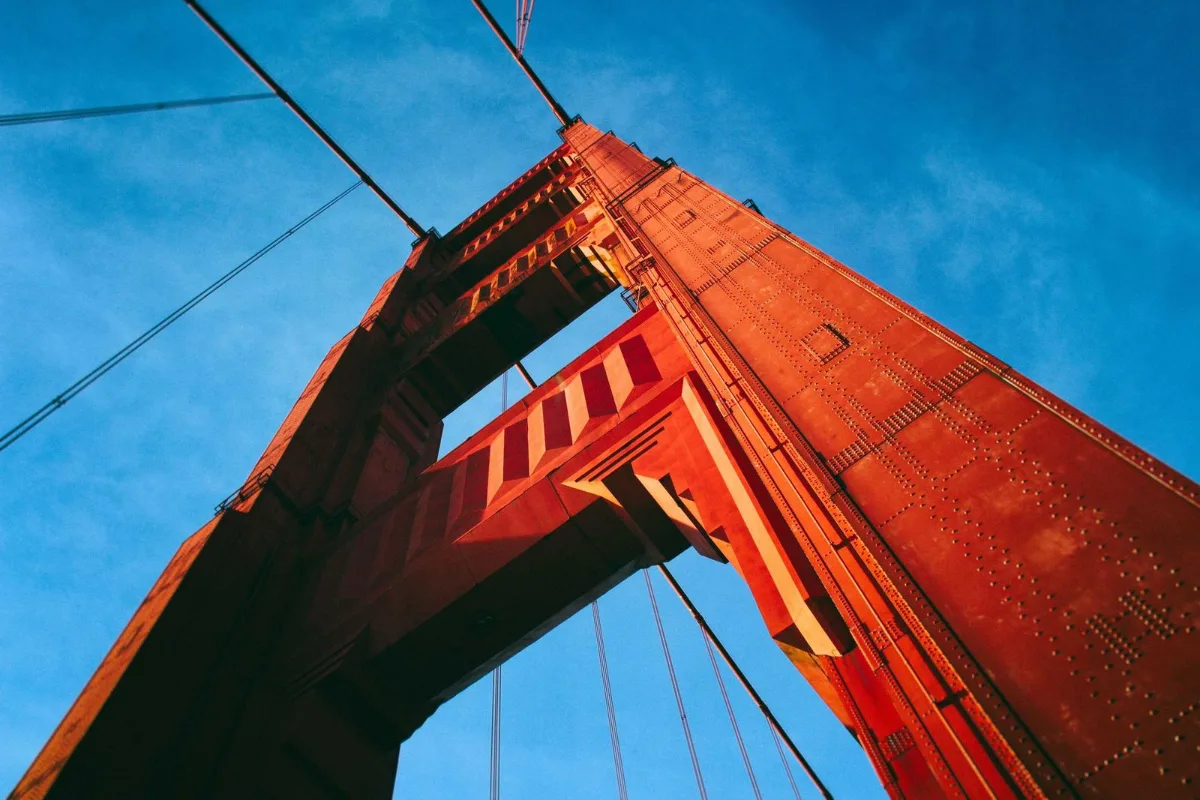
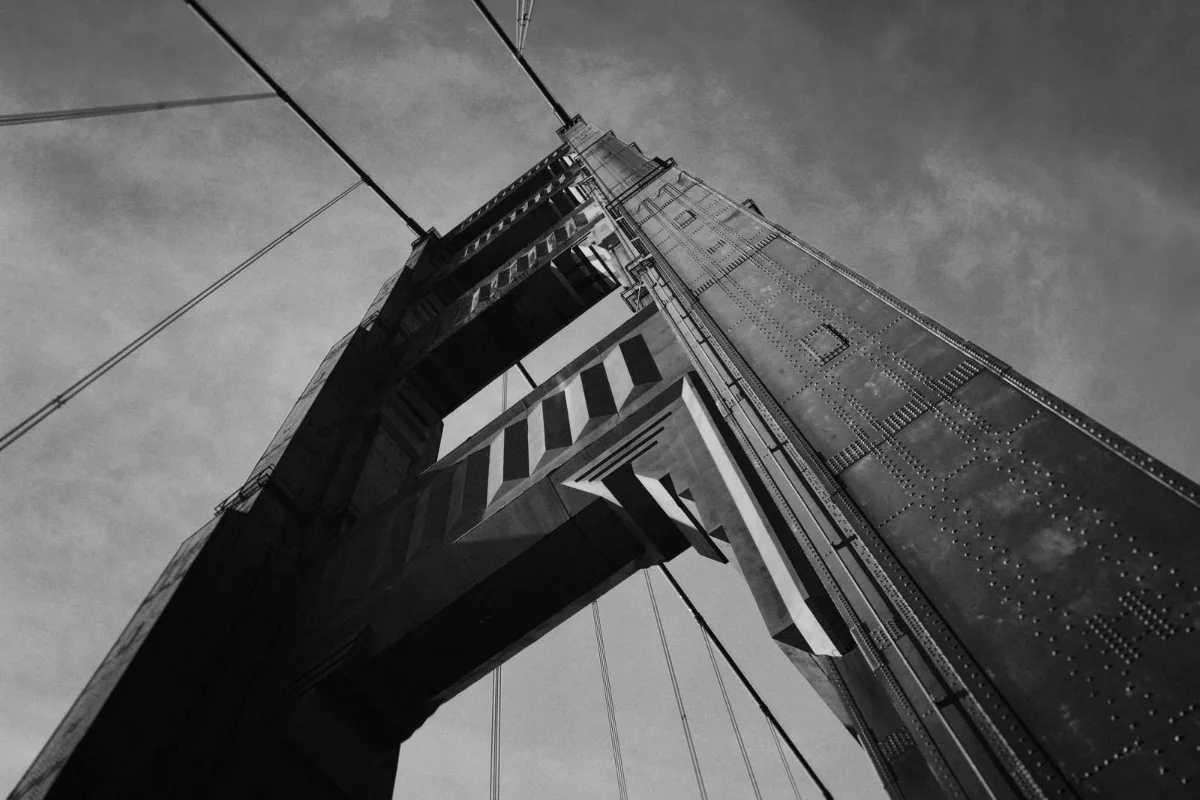
Convert to black and white with luminance-weighted conversion (not a flat average), so skin tones and skies keep their depth. Add contrast for punch or choose sepia for a vintage look.
What is Black and White?
Our black and white photo converter turns colour pictures into classic grayscale or warm sepia, with a contrast slider to add punch or soften the mood. You can convert a single portrait or a whole folder of photos in one go.
Black and white removes the distraction of colour and puts the focus on light, shape and expression. It is also practical: a grayscale version prints cleanly on office printers, matches the style of old family photos, and fits documents that ask for a monochrome image. The conversion runs in your browser, so you keep full control of your pictures.
How to use the Black and White
- Drop photos.
- Choose B&W or sepia and adjust contrast.
- Download.
How Black and White works
A naive grayscale conversion simply averages the red, green and blue values of each pixel. That looks flat, because our eyes do not see the three colours as equally bright. Green looks much brighter to us than blue, so a simple average turns blue skies too light and green foliage too dark.
This converter uses a luminance-weighted formula instead, which gives green the largest share, red a medium share and blue the smallest. Skin tones, skies and leaves keep a natural sense of depth. The sepia option starts from the same brightness values and tints them with the warm brown of old print processes.
The contrast slider then stretches or compresses the tones around the middle grey. At 110% the default adds a little punch; values towards 200% create a dramatic, high-contrast look, while values below 100% give a softer, faded feel. Everything is drawn on a canvas in your browser at full resolution.
Key features of Black and White
Free mono for every photo
Convert one picture or a whole album in a single run, with no watermark on the result. Download photos individually or together as a ZIP.
Luminance-weighted grayscale conversion
Colours are converted according to how bright they look to the human eye, not a flat average. Skies, skin and foliage keep their depth, and the contrast slider from 50% to 200% lets you fine-tune the tones.
Converts in a blink
Nothing is sent off for processing and there is no queue, so a typical photo turns black and white in about a second. Batches move just as quickly, limited only by the speed of your own device.
Phone, tablet or laptop
Convert photos straight from your camera roll or computer folders. Works in current Chrome, Edge, Safari and Firefox on Windows, macOS, Linux, iPhone, iPad and Android, with no app needed.
Simple, labelled controls
The tone switch and contrast slider can be operated with Tab and the arrow keys, every control is labelled, and progress is announced to screen readers. Dark mode is built in and there are no time limits.
Family photos stay private
Your pictures are converted locally in your browser and never stored on a server. You can check this in the network tab, and the tool keeps working offline once the page has loaded.
What makes EZCompressor's Black and White different
Not a flat average
Many quick converters average the colour channels, which makes skies pale and greens muddy. This one weights the channels by perceived brightness, so the result looks like a proper monochrome photograph.
Sepia and contrast built in
Choose classic black and white or a warm sepia tone, then adjust contrast before you download. You get the finished look in a single step rather than juggling several separate filters.
Whole albums at once
Drop a batch of photos and they are all converted with the same tone and contrast, ready to download as one ZIP. That keeps a wedding set or a portfolio series consistent.
Why use Black and White?
A black and white photo hides distracting colours, such as a bright sign or a clashing shirt, and draws attention to faces, light and texture. It suits portraits, street scenes and architecture especially well, and a sepia tone gives new photos the gentle warmth of old prints.
There are practical reasons too. A grayscale image prints predictably on mono printers and photocopiers, takes up less ink, and fits forms or newsletters printed in one colour. Converting a set of mixed photos to black and white also makes them look like they belong together on one page.
Who can use Black and White?
Wedding photographers
Deliver a black and white set alongside the colour gallery, converting a whole batch with the same contrast so every image matches.
Family historians
Give modern photos a sepia tone so they sit naturally beside scanned prints from older generations in an album or slideshow.
Newsletter editors
Convert photos to grayscale before printing a one-colour newsletter or flyer, so you can preview how they will really look on paper.
Art and photography students
Study composition and light without the distraction of colour, and compare how different contrast settings change the mood of the same picture.
Designers
Create monochrome images for minimal brand layouts, then pair them with a single accent colour for a clean editorial style.
Settings explained
| Setting | What it does |
|---|---|
| Tone | Neutral black and white, or warm sepia. |
| Contrast | Boost or soften contrast after conversion. |