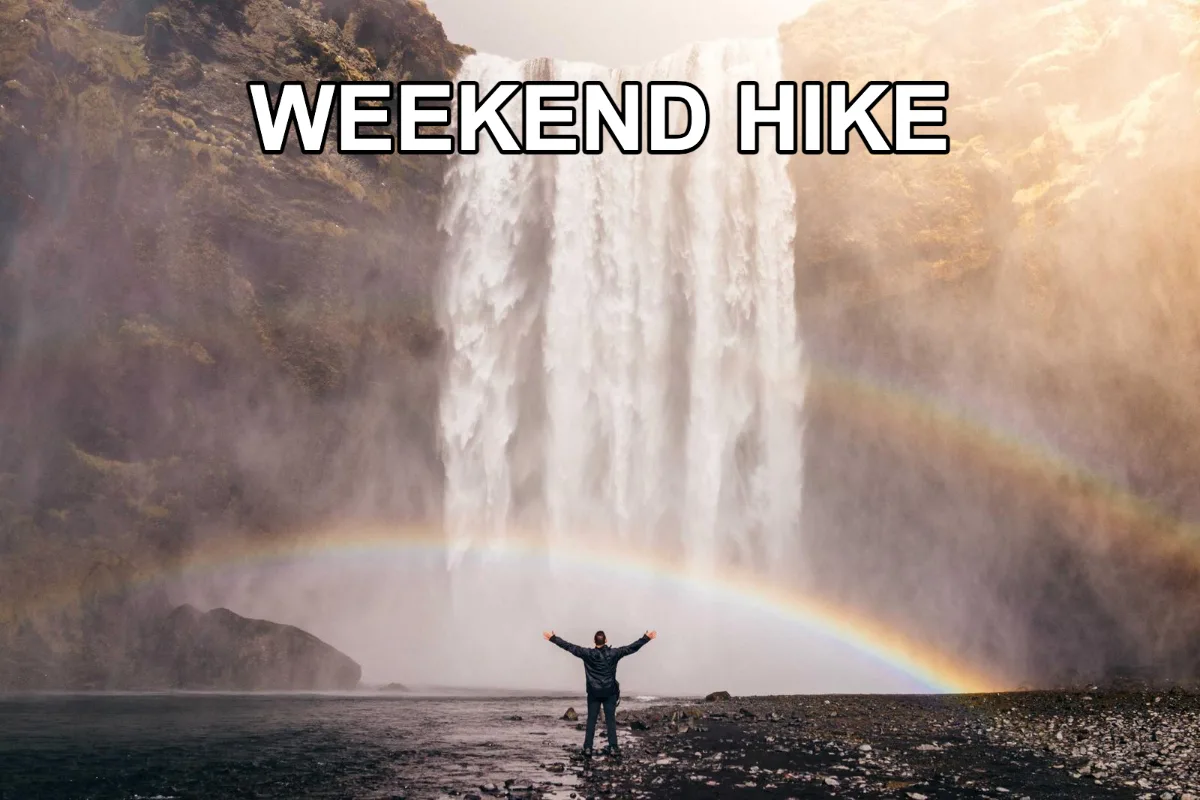
Add a caption, a quote, a price tag or a watermark line to any image. Pick a font, size, colour and outline, drag the text where you want it, and download at full resolution.
What is Add Text to Image?
Our add text to image tool lets you write captions, quotes, labels and prices directly onto a photo. You choose the font, size, colour, outline, shadow, opacity and angle, then drag the text to exactly where you want it, with a live preview of the final image.
You can add several separate text layers to one picture, each with its own style, which is handy for a title plus a subtitle, or a product name plus a price. The finished image downloads at its full original resolution with no watermark, so it is ready for social posts, thumbnails, invitations and listings.
How to add text to image
- Drop an image.
- Type your text and style it; drag to position.
- Download.
How Add Text to Image works
Readable text on a photo depends on contrast. A photo has light and dark areas, so plain white text can vanish over a bright sky. Two classic fixes are built in: an outline (a stroke around each letter in a contrasting colour) and a soft drop shadow. Either one keeps the words legible over busy backgrounds, which is why meme and thumbnail text usually uses both.
Text size is set as a percentage of the image's shorter side rather than in fixed pixels. That means the same setting looks proportionally the same on a small phone photo or a large camera image, and the position is stored as a percentage too.
When you download, the text is drawn onto the full-resolution image by your browser's canvas engine, so the result is as sharp as the original. Nothing is sent to a server at any point.
Key features of Add Text to Image
Free text, no watermark
Add as many text layers as you need and download the finished image for free. There is no premium font paywall and no logo stamped on your picture.
Placed where you drop it
Drag the text to any spot and it lands exactly there on the full-size image. Size, rotation from -90° to 90°, opacity, outline thickness and colours are all adjustable, and the preview matches the download.
Live preview as you type
Every change to the text, font or colour appears on the image immediately, so there is no render step to wait for. The download is created in a second or two on your own device.
Drag text with a finger
Position text by dragging with a mouse or touch, so it works just as well on an iPhone, iPad or Android phone as on a computer. Supported in current Chrome, Edge, Safari and Firefox.
Labelled styling controls
Font, colour, size, opacity and rotation controls all have visible labels, the sliders work with arrow keys and the text box is a normal field you can type into with a keyboard. Dark mode is supported.
Your photo stays local
The image is opened and edited only in your browser. It is never sent to our servers, so personal photos, unreleased products and private designs stay on your device. You can confirm this in the network tab.
What makes EZCompressor's Add Text to Image different
Multiple text layers
Many simple tools allow one line of text. Here you can add separate layers, select each one and style it independently, so a headline, a subtitle and a credit can each have their own font and colour.
Outline and shadow included
Thick outlines, outline colour and a soft shadow are standard controls rather than paid extras. That makes bold thumbnail and meme-style text easy to create without layering effects by hand.
Full resolution download
The image you download is the same size as the one you added, not a shrunken preview. There is no watermark on the image you save.
Why use Add Text to Image?
A few words on a picture change how it works. A caption explains what a photo shows, a quote turns a landscape into a shareable post, and a price or product name makes a listing photo clear at a glance. Writing text on a photo in a browser is quicker than opening a design app for a one-off job.
The outline and shadow options matter most when the picture is busy. White text with a black outline reads on almost any background, which is why it is the standard for video thumbnails and memes. If you add text to image files to mark ownership on many photos at once, the Add Watermark tool is the better fit.
Who can use Add Text to Image?
YouTubers
Add bold outlined titles to video thumbnails so the topic is readable even at the small size shown in search results and on phones.
Small shop owners
Label product photos with a name, price or 'New' tag before posting them on social media or a marketplace listing.
Event organisers
Put the date, time and venue on a photo to create a quick invitation or poster without a design subscription.
Teachers
Label parts of a diagram, a map or a photo of an experiment for worksheets and slides, using different colours for each label.
Meme makers
Write classic top and bottom captions in Impact with a thick black outline, and drag each line exactly into place on the picture.